Enabling Auto-Enroll for a Practical
Last updated: December 27, 2025
Video
Step-by-Step Guide
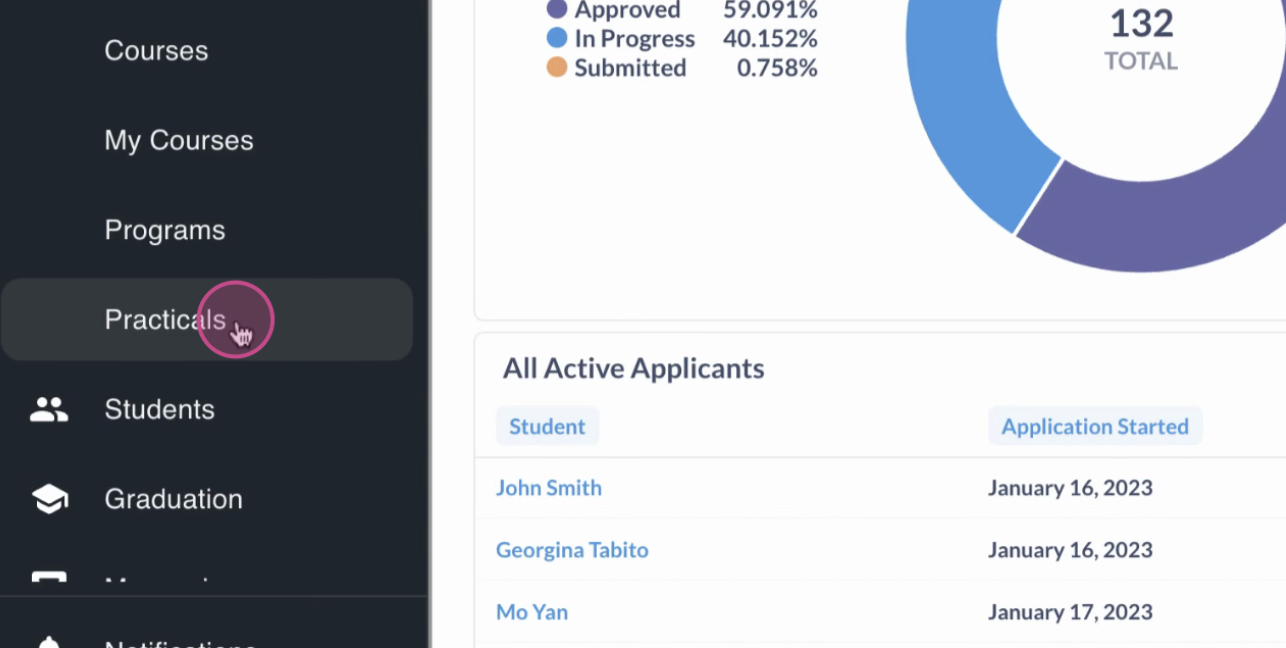
Step 1: Access the Practicals Table
Start by navigating to the Practicals table on the MyPath platform. This table displays all practicals currently set up and offered.
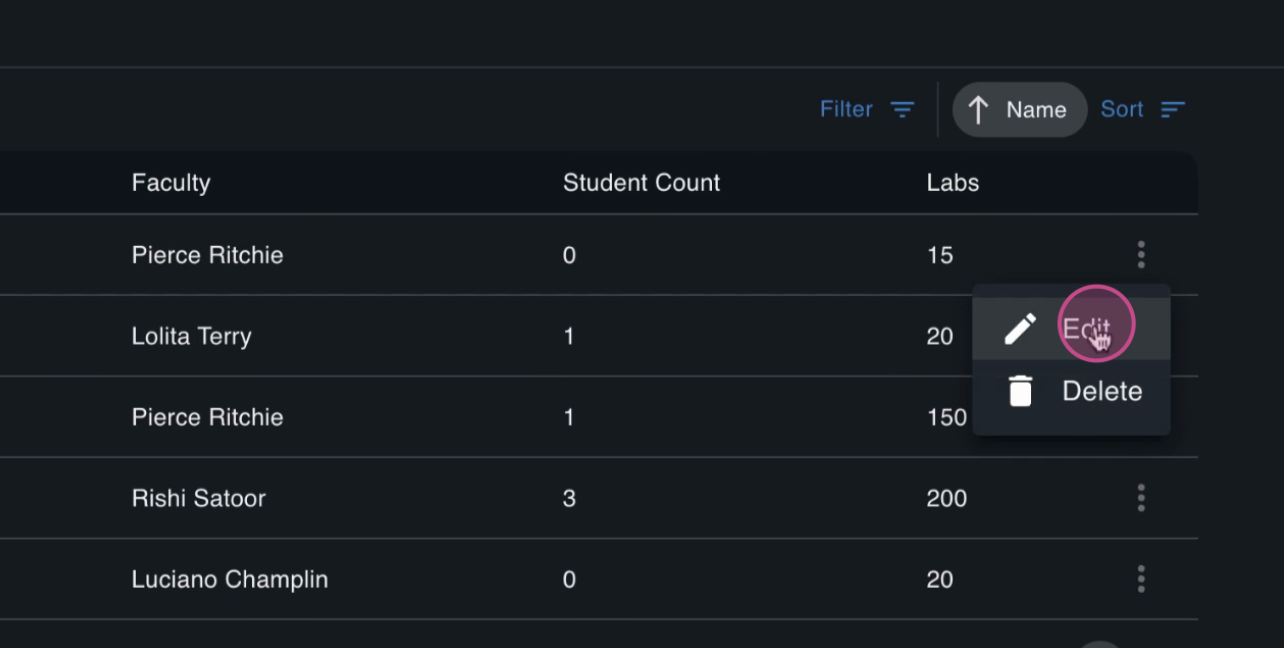
Step 2: Select the Practical to Edit
Find the practical where you'd like to enable auto enroll. Click the Edit button located next to that practical.
Step 3: Enable Auto Enroll
In the editing options, locate the Auto Enroll toggle. Switch it on.
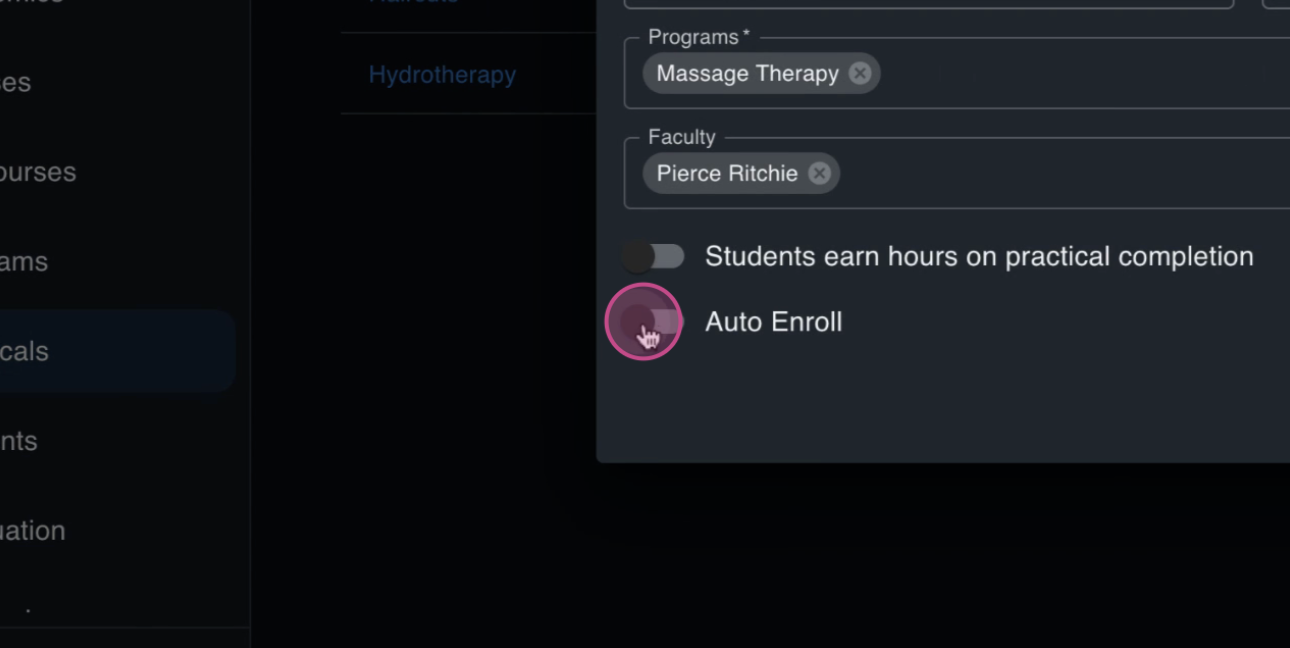
When you activate this setting, any students enrolled in the parent program (in the future) will automatically be added to the selected practical.
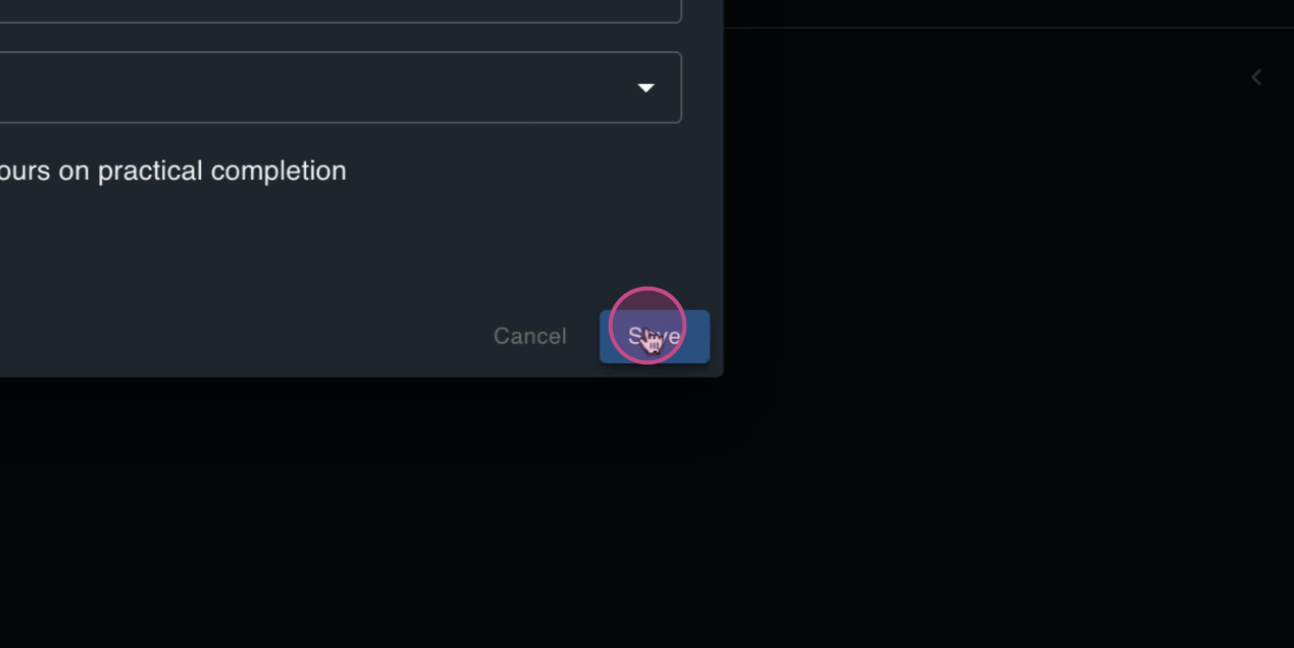
Step 4: Save Time and Simplify Enrollment
With Auto Enroll enabled, there's no need to manually add students to each practical. This feature saves time and streamlines the enrollment process for you and your staff.
FAQs
Will students previously enrolled in the program automatically be added once auto-enroll is turned on?
No, only future students enrolled in the parent program will automatically be added to the Practical once Auto-Enroll is toggled on.