Uploading a Student Document
Last updated: December 28, 2025
Video
Step-by-Step Guide
Welcome to this tutorial on how to upload documents for students on MyPath. By the end of this guide, you'll know how to upload and manage documents for your students.
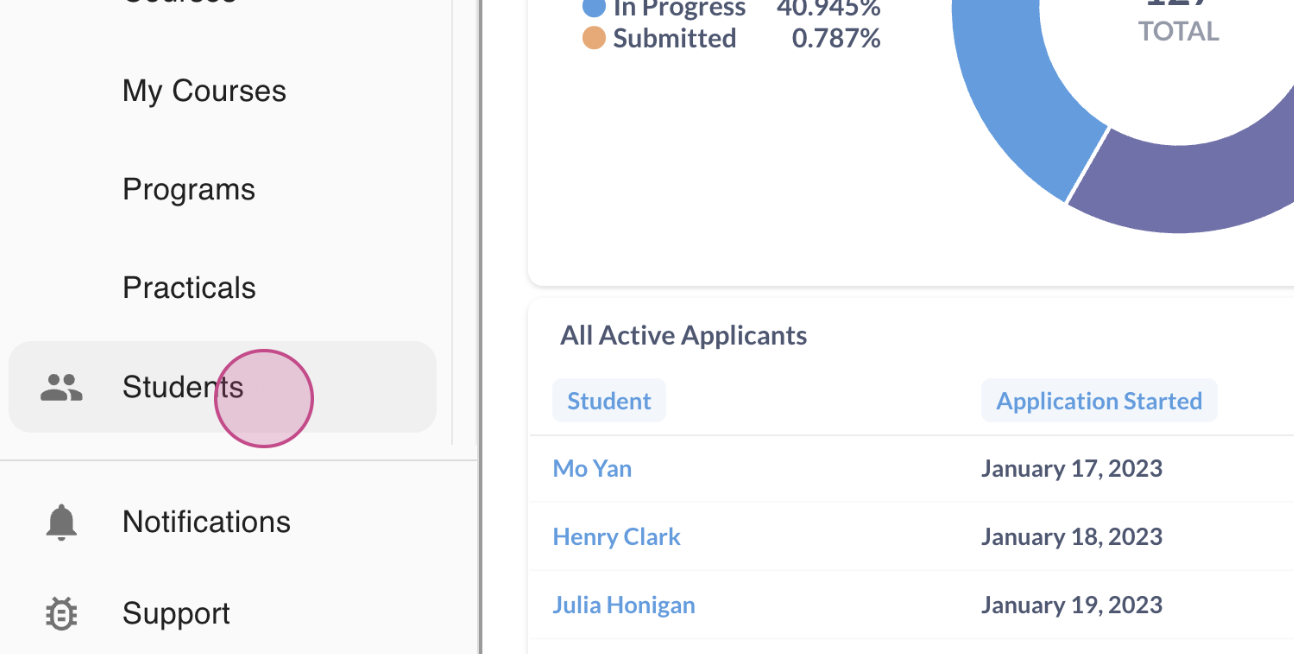
Step 1: Navigate to the Students page.
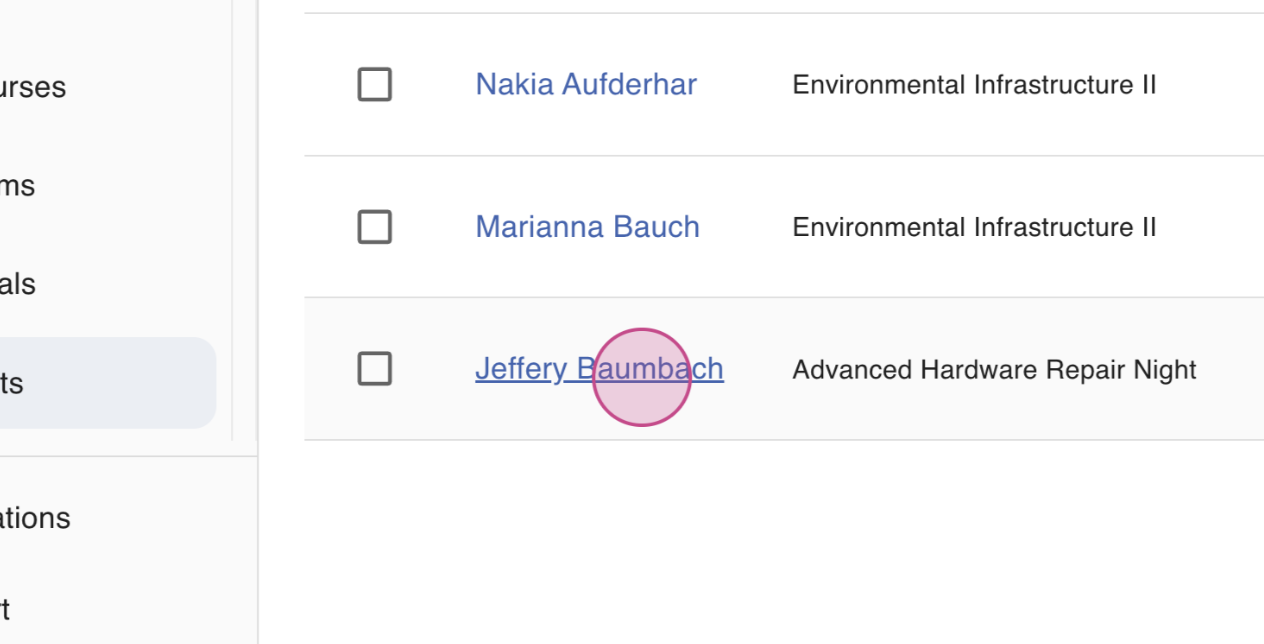
Step 2: Select the student for whom you want to upload documents.
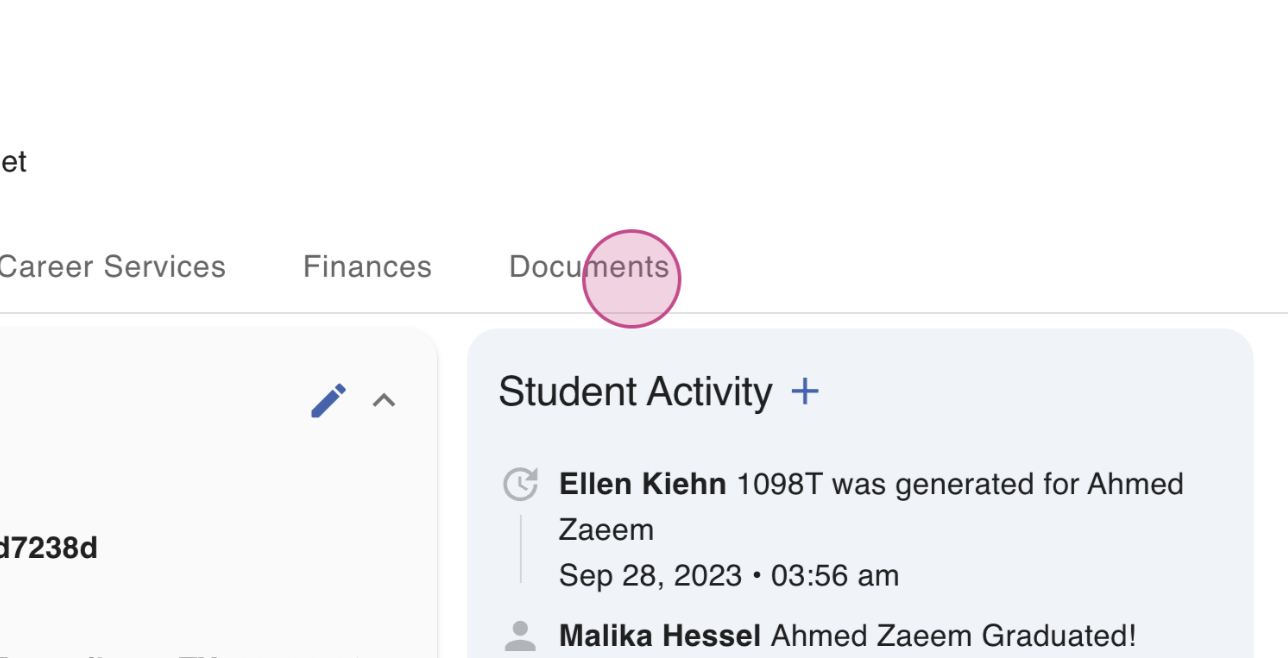
Step 3: Click on the Student's Documents tab.
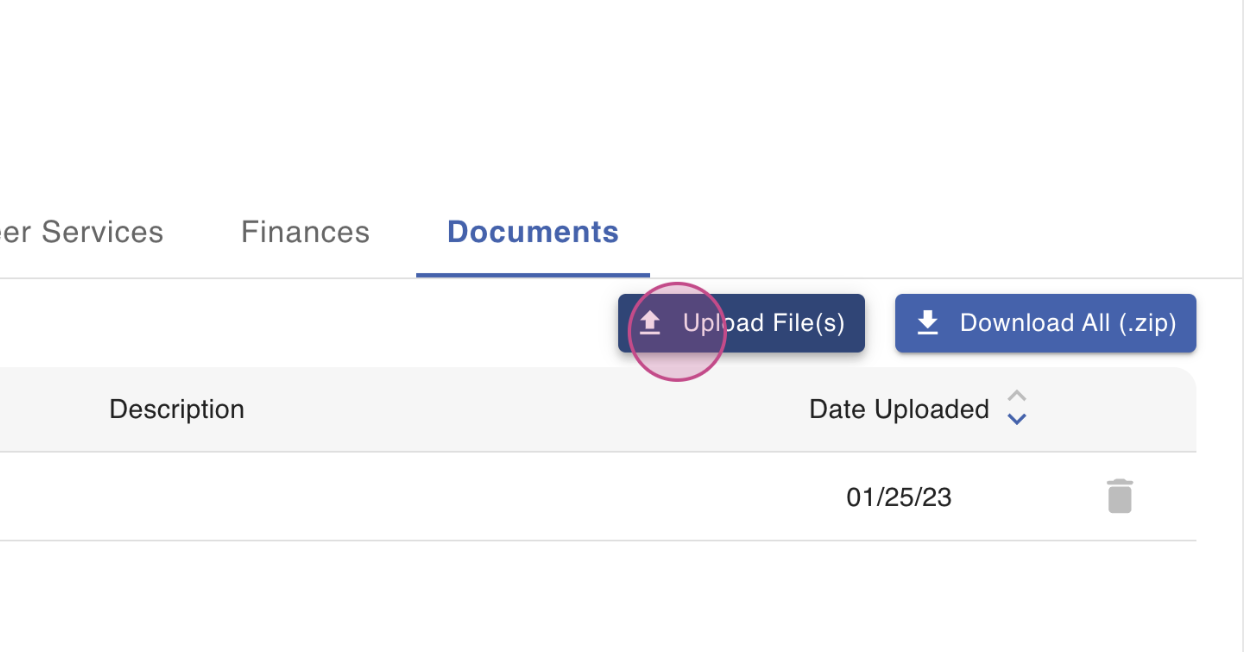
Step 4: Click on Upload Files.
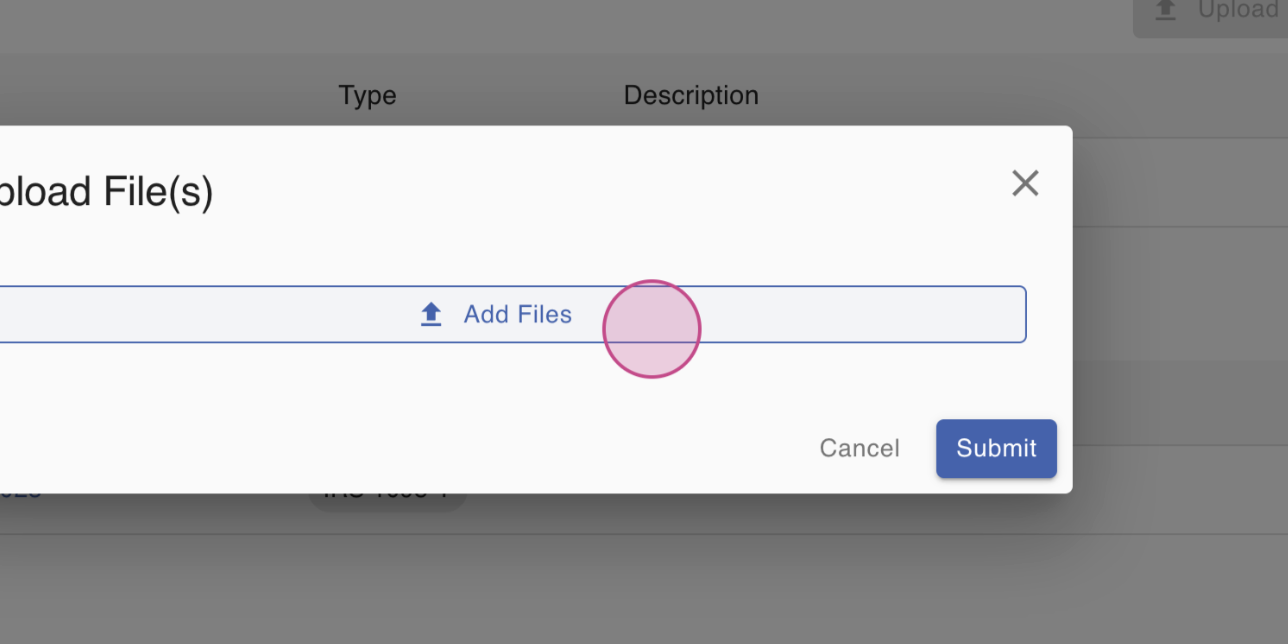
Step 5: Choose the file you want to upload.
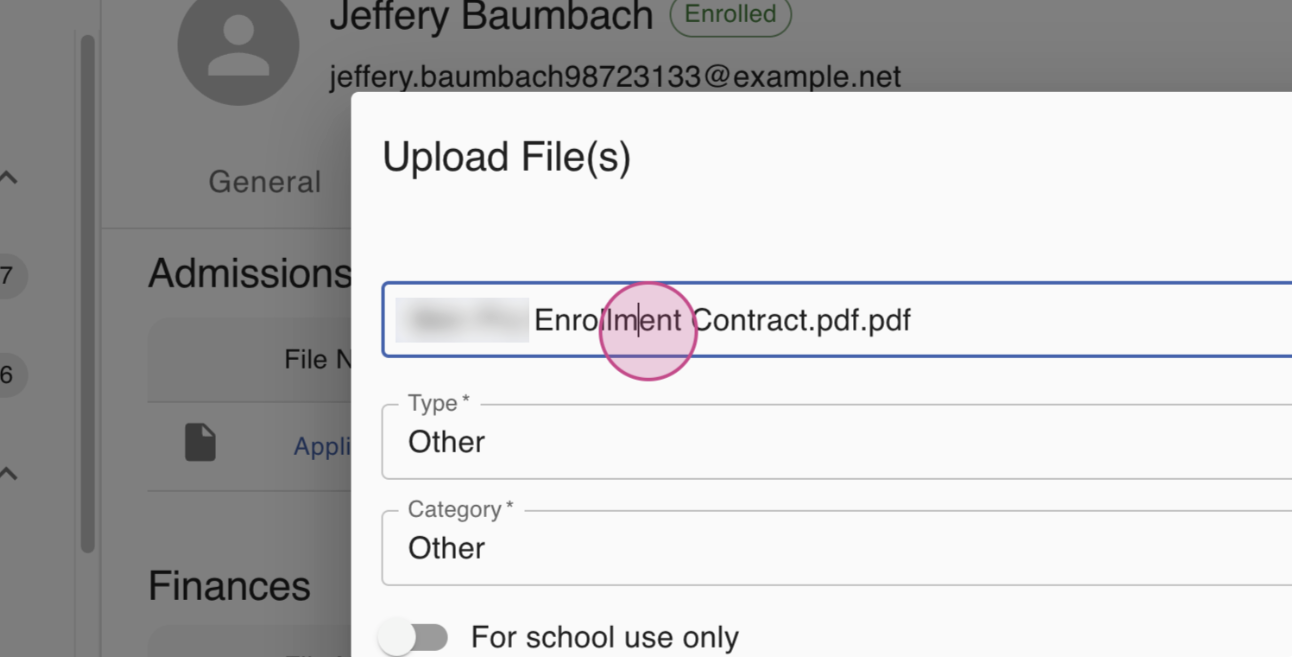
Step 6: After selecting the file, rename it to your preference. Here, we're naming it Example Document.
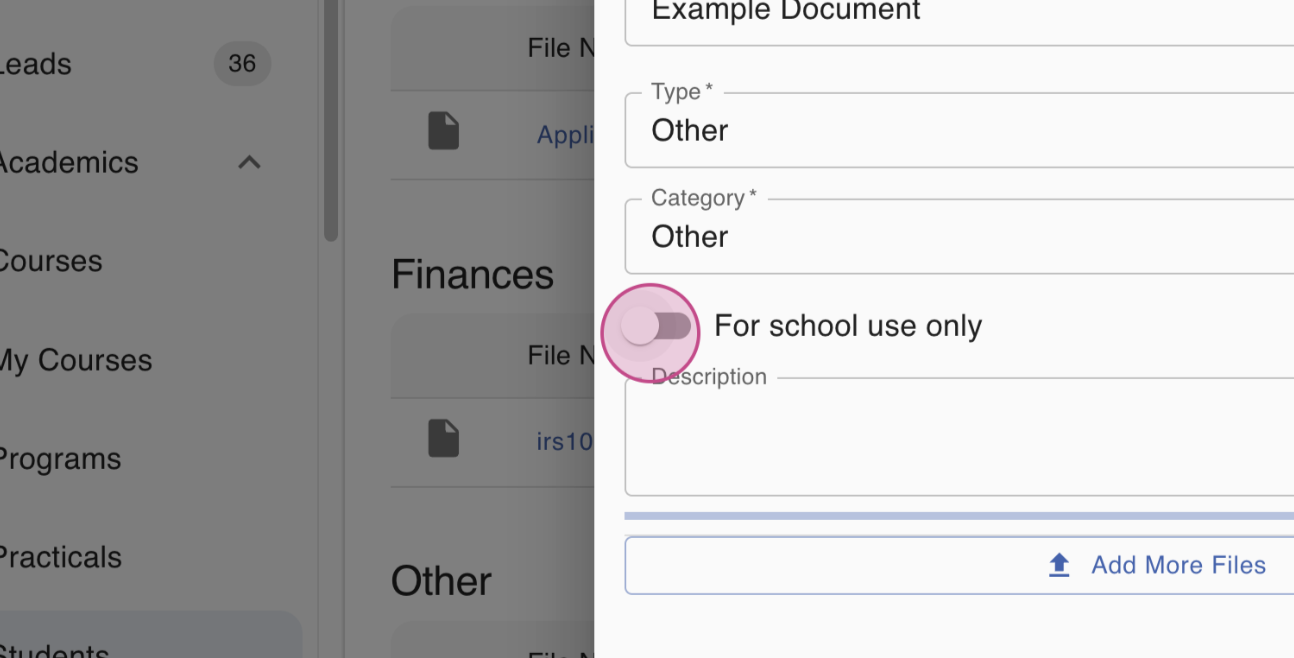
(Optional) Step 7: If you want the document to be accessible only to school staff, tick the box 'For school use only'.
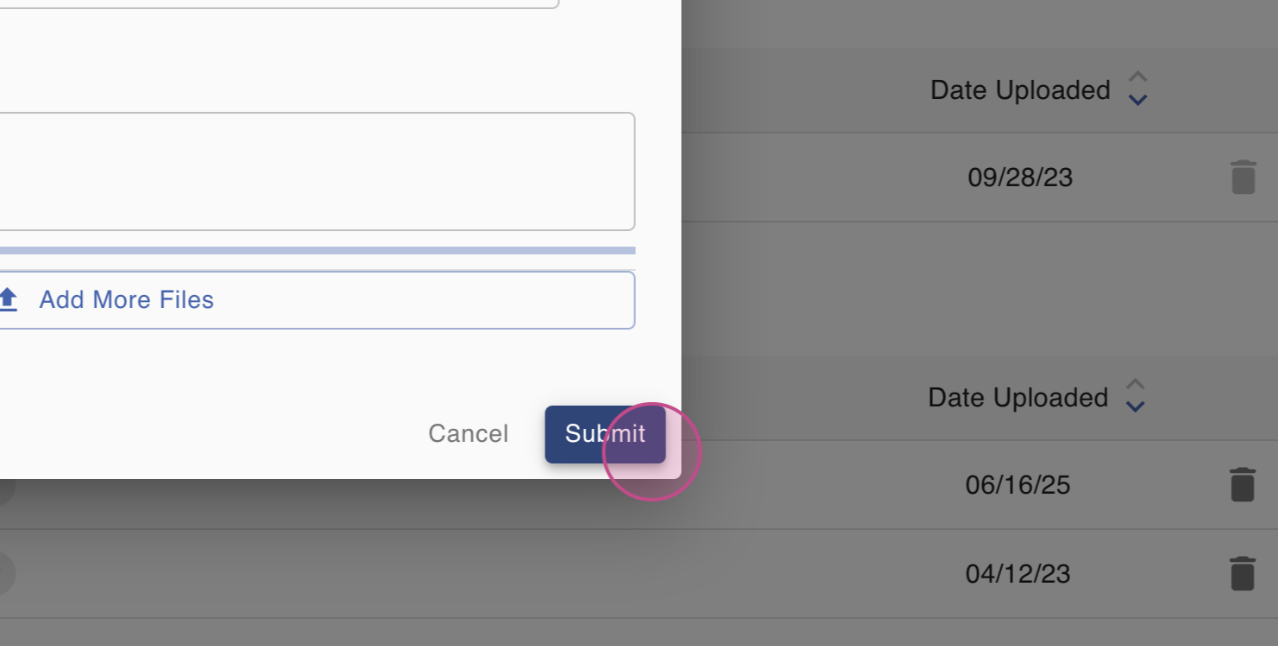
Step 8: Click Submit to upload the document. You'll find the newly uploaded document listed on the page.
FAQs
Can documents be deleted after they have been uploaded?
The majority of documents in a student's Documents page can be deleted. Select documents, such as an enrollment agreement automatically generated and saved by the system, cannot be manually deleted by staff. These documents are referred to as protected documents.
If you find a protected document you would like to have removed, please submit a Support Request.