Editing Student Hours
Last updated: December 29, 2025
Video
Step-by-Step Guide
This article will guide you through the process of editing a student's hours in MyPath.
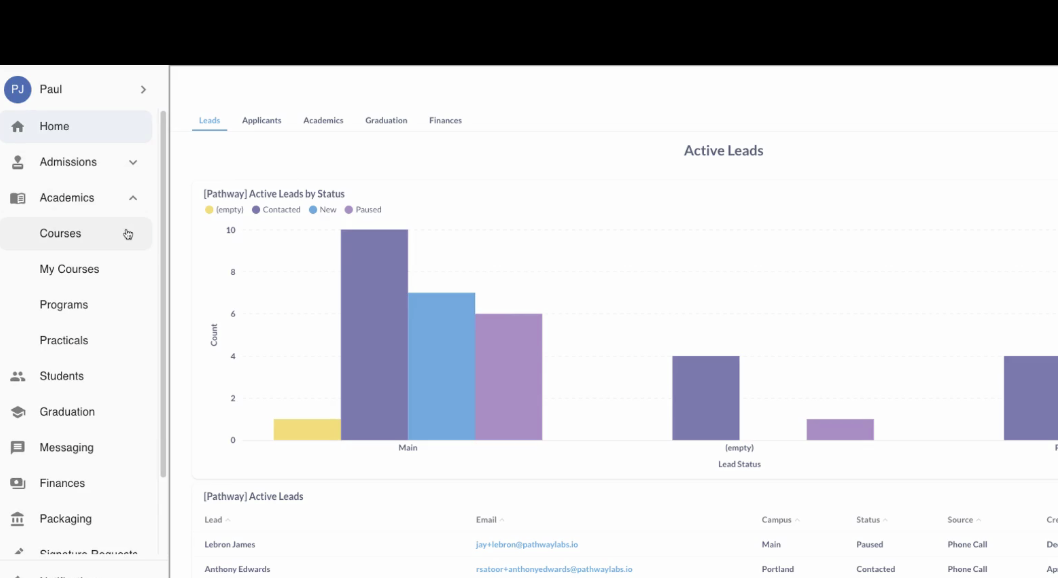
Step 1: Start by expanding the 'Academics' section and select the 'Courses' page.
Step 2: Select the Course in which student hours will be edited.
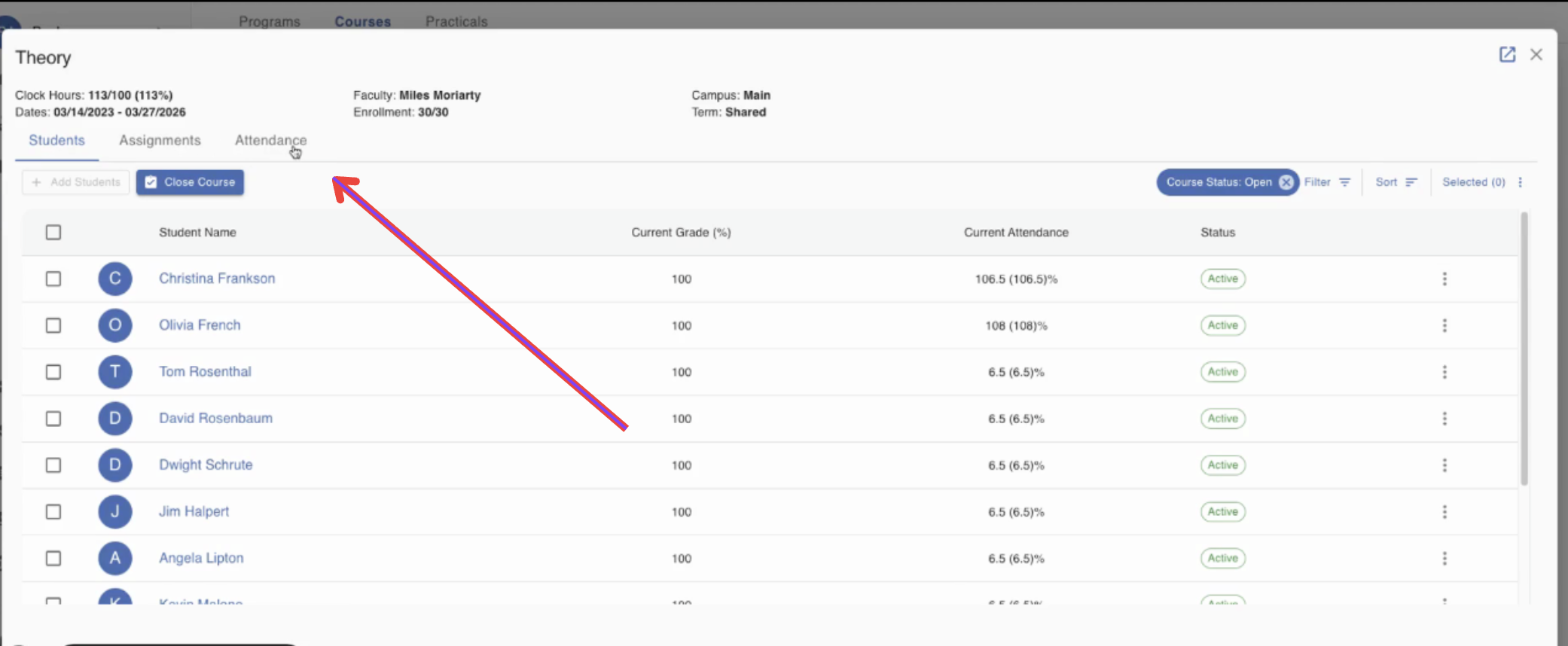
Step 3: In the Course page, you'll find tabs corresponding to the course's roster, assignments, and attendance. To edit student hours, select the 'Attendance' tab.
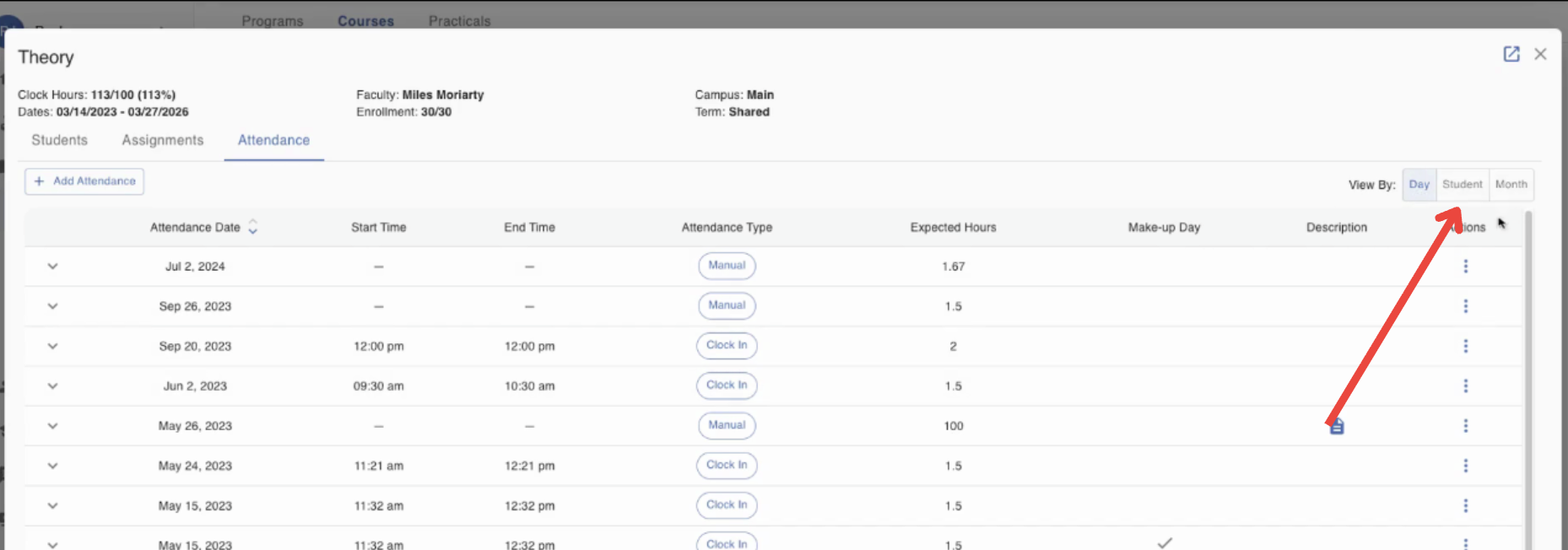
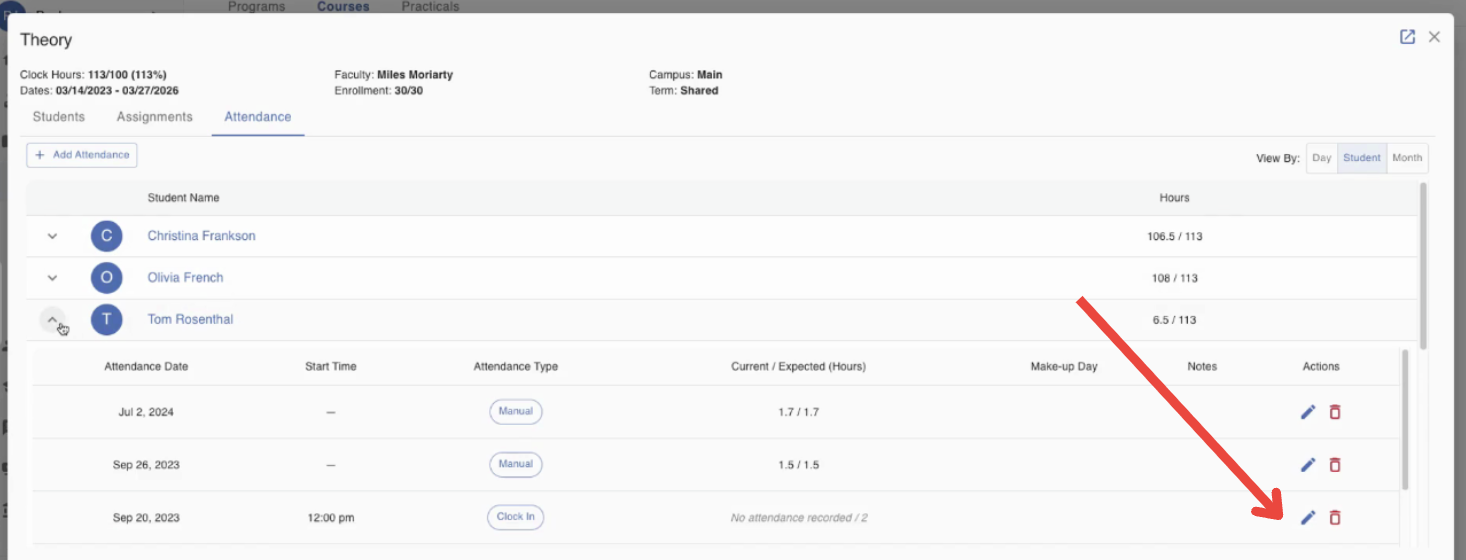
Step 4: You'll see various dates where hours were recorded. You'll also find three options for viewing attendance by 'Day', 'Student', and 'Month'. Click on 'Student'.
Step 5: You'll now see attendance by student. Locate the student whose hours you need to edit and expand their row.
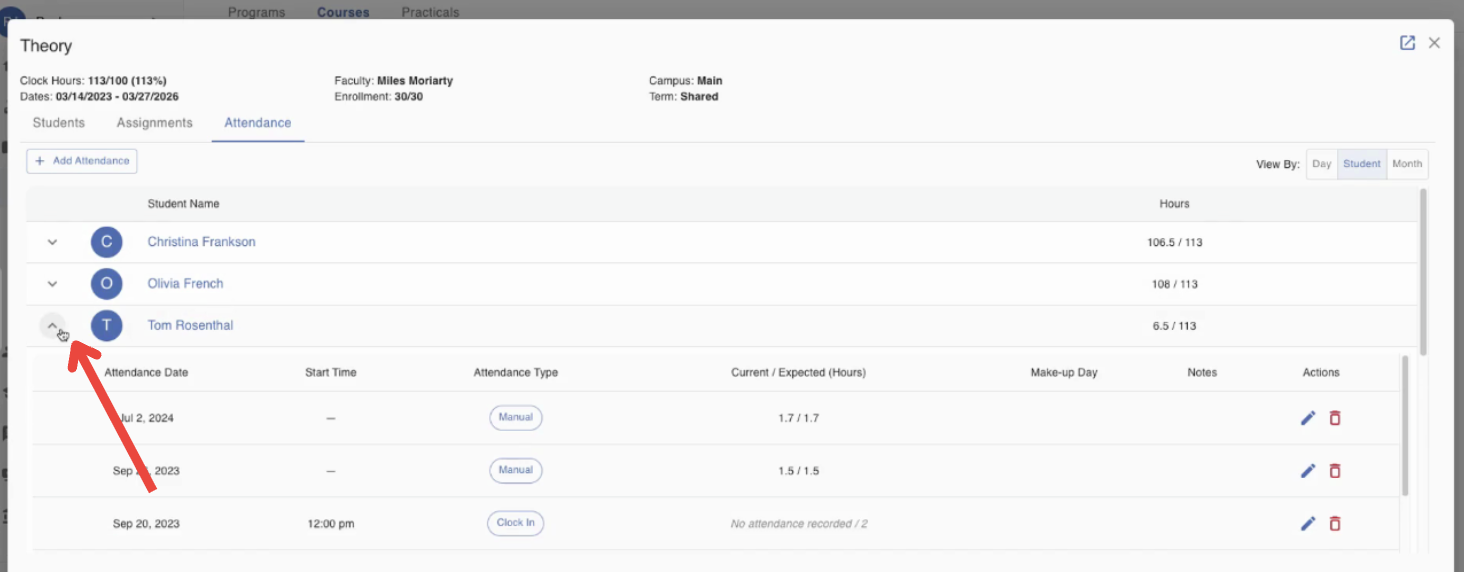
Step 6: The student is missing attendance on September 20, 2023. To edit this, go to the far right and click on the 'Edit' icon.
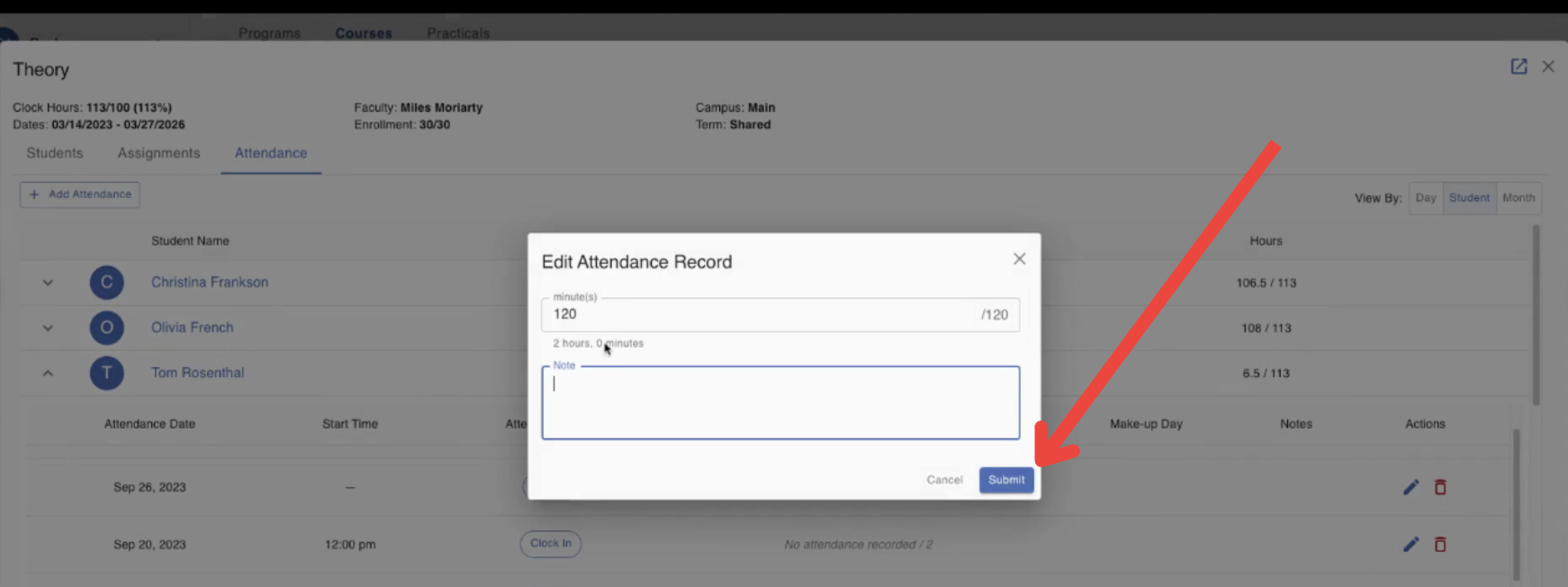
Step 7: A window will pop up where you can edit the hours earned by the student and add a note is needed. Complete the updates and click 'Submit'.
If you need further assistance on how to edit student hours, feel free to reach out. We're here to help!