Payment Plan Module Overview
Last updated: December 29, 2025
Video
Step-by-Step Guide
Welcome to this tutorial on MyPath. By the end of this guide, you'll know how to create new payment plans for students and how to create payment plan templates.
Step 1:
Navigate to a student's finances view.
Step 2:
Click on the student's name, in this case, Milan, and then click on the student's finances tab.
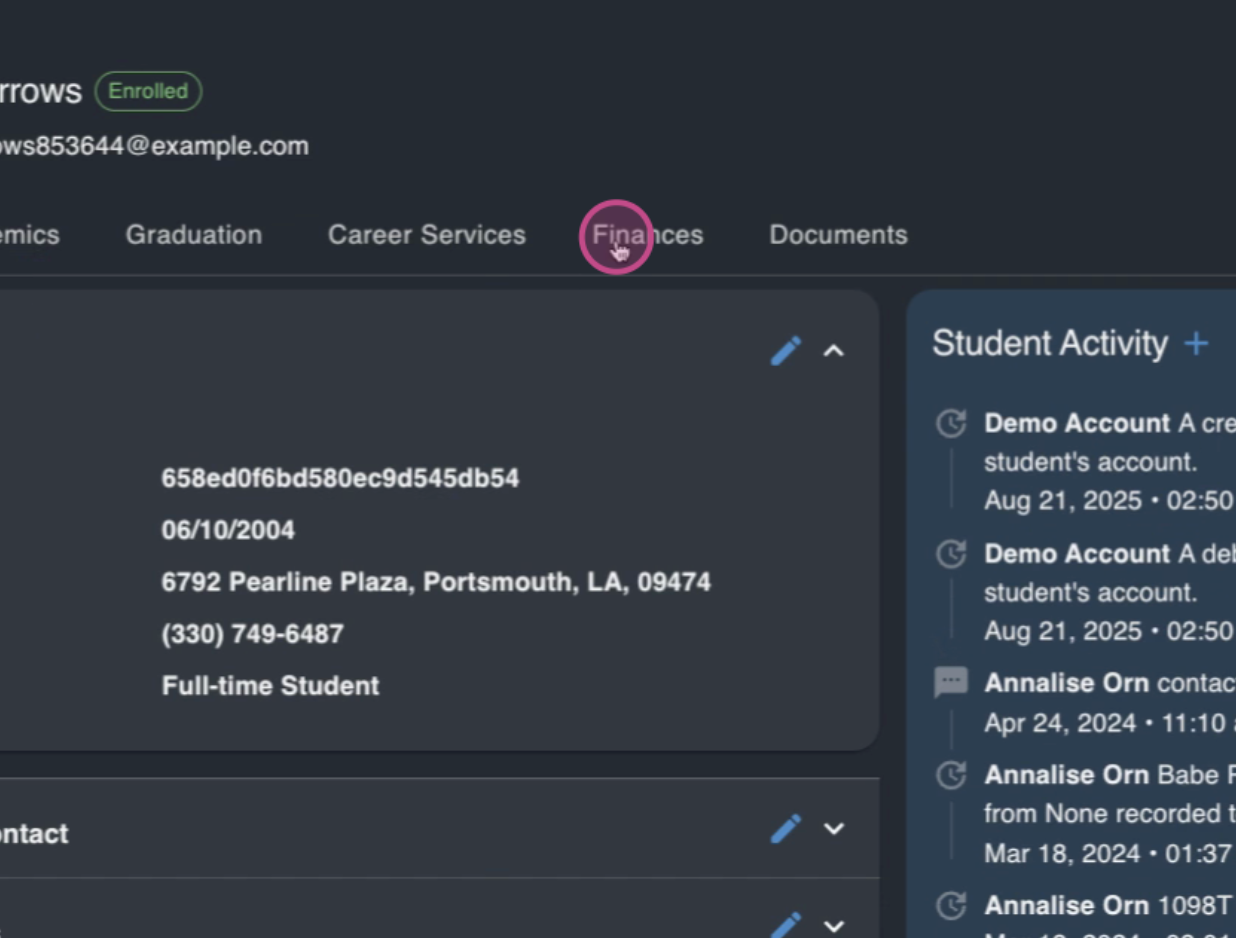
Here, you'll see the student's ledger, which includes all credit and debit ledger items.
Step 3:
To record any payment requested from the student or any payment made by the student, use the credit add credit or debit form.
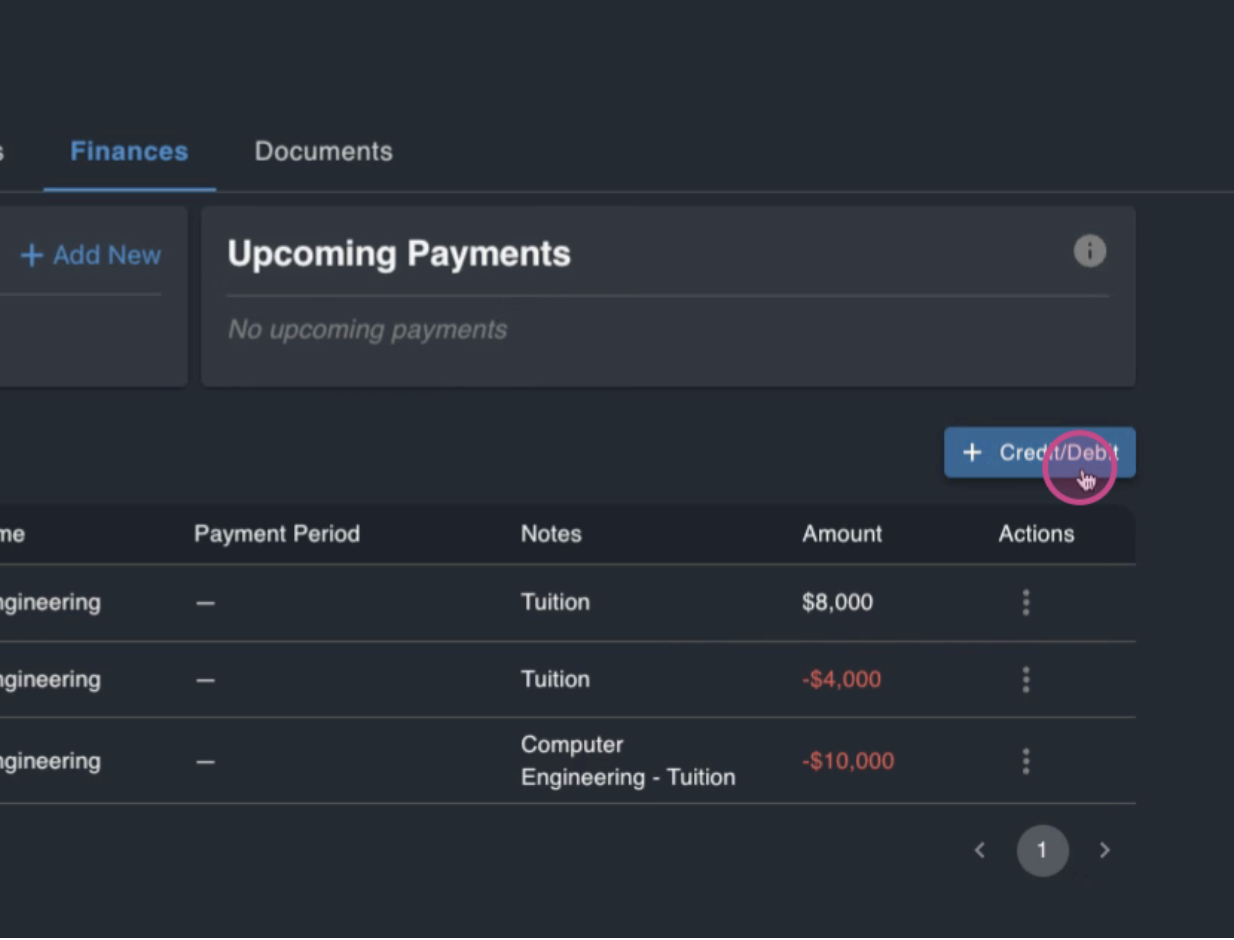
For schools accepting multiple payments from numerous students, we've added a feature called payment plans.
Step 4:
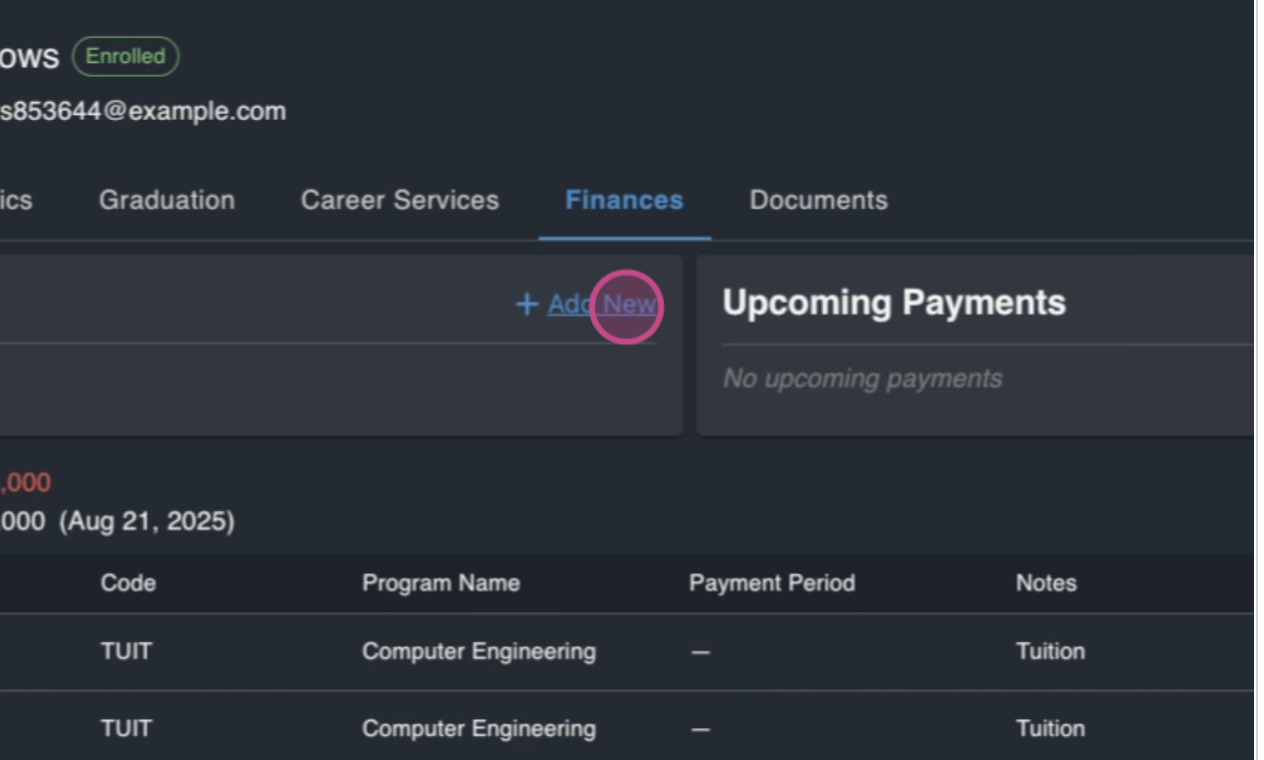
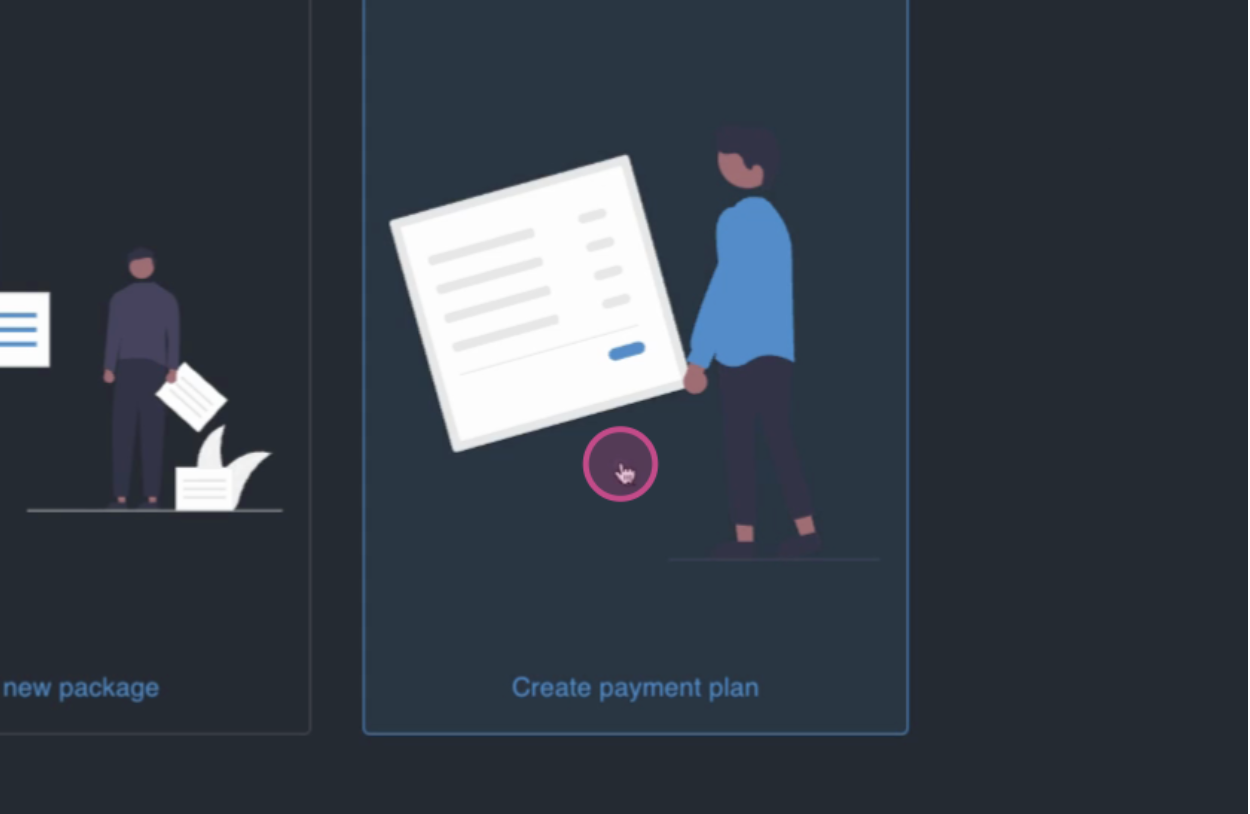
Click on Add New and select create a payment plan.
Step 5:
Select a program for the student. In this example, the student is enrolled in computer engineering.
Step 6:
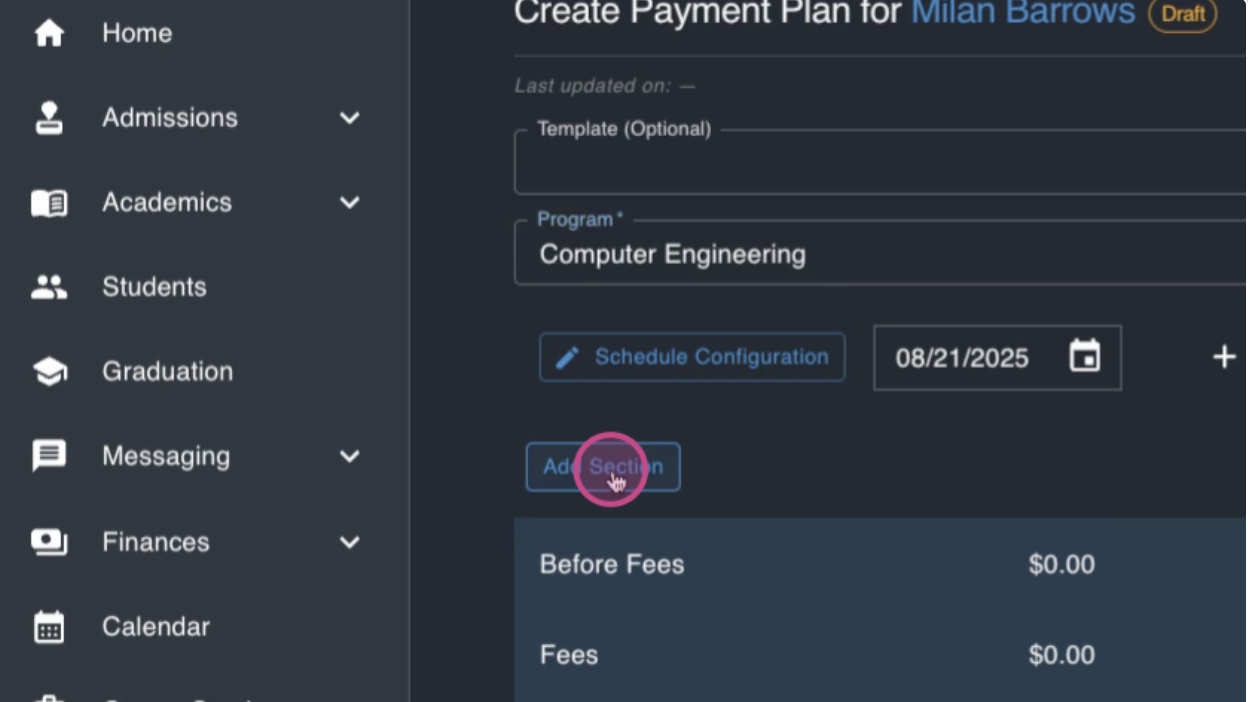
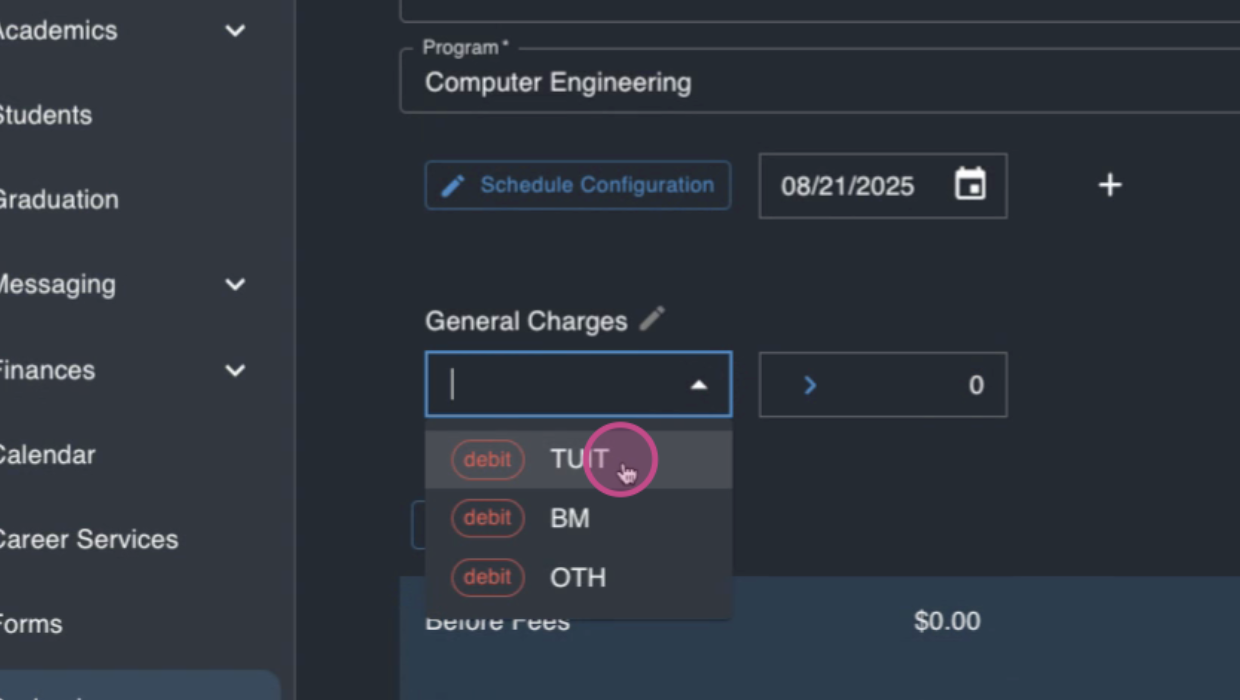
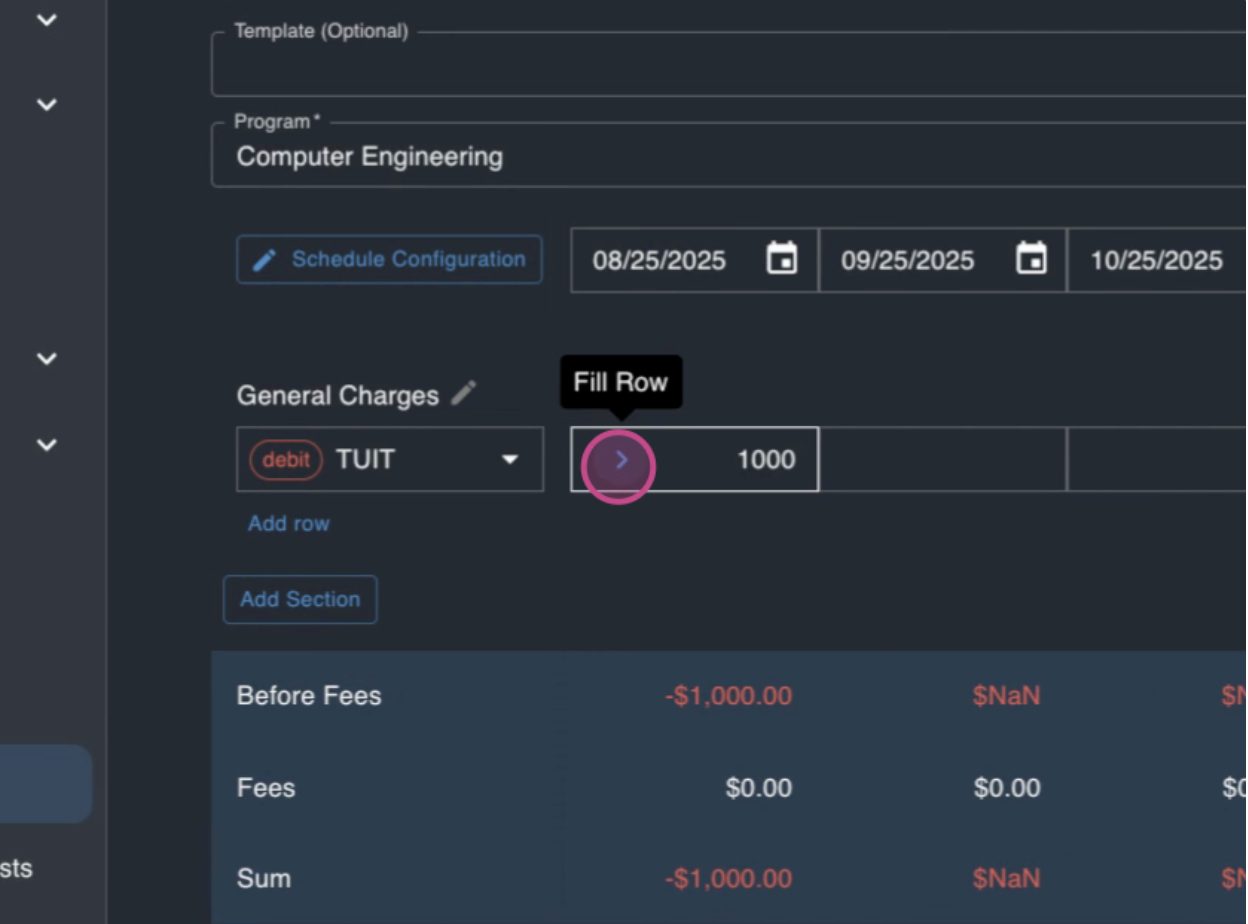
Add a section, for example, general charges, and add the tuition ledger item.
Step 7:
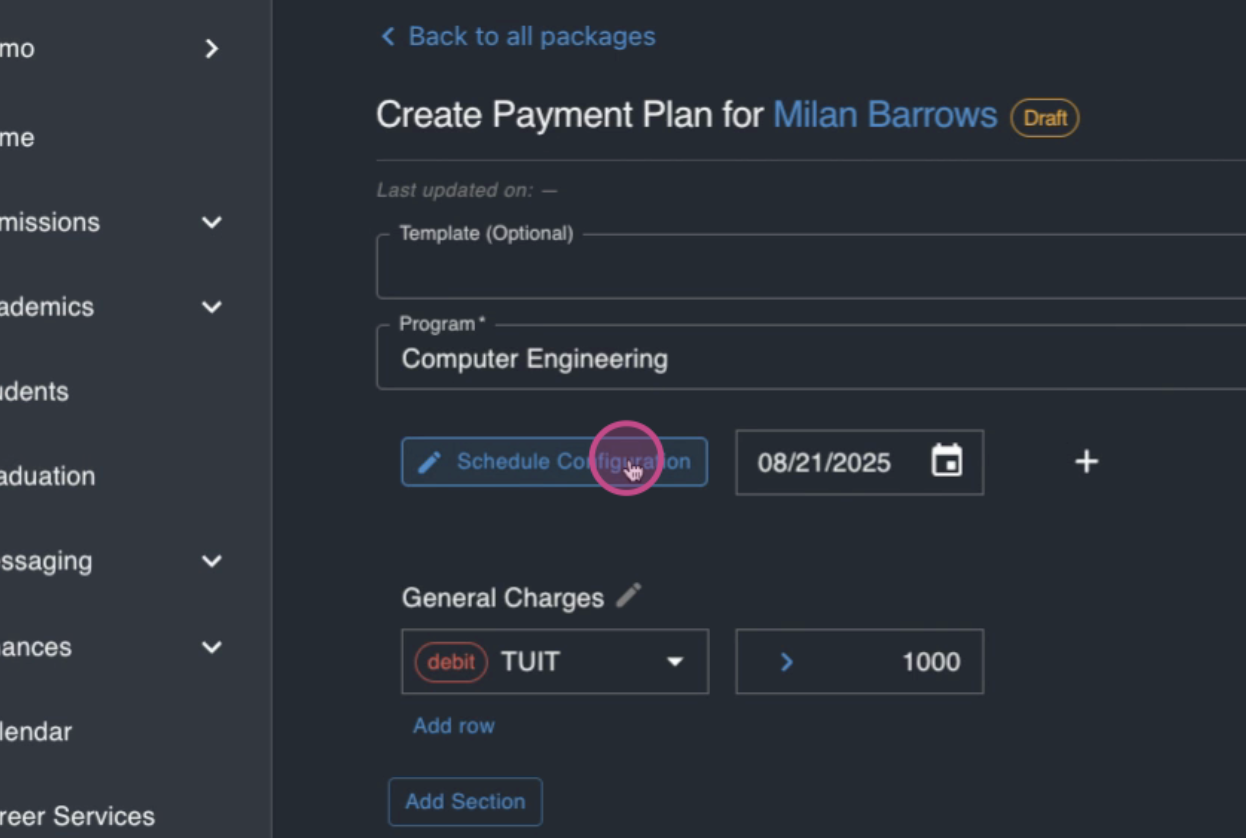
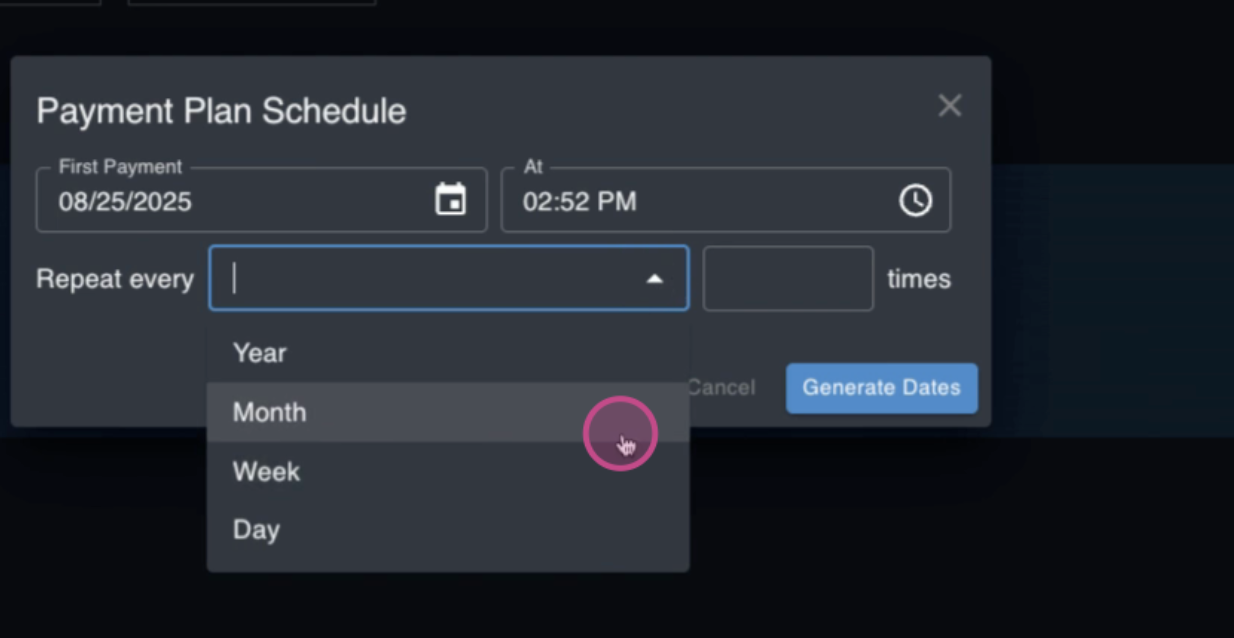
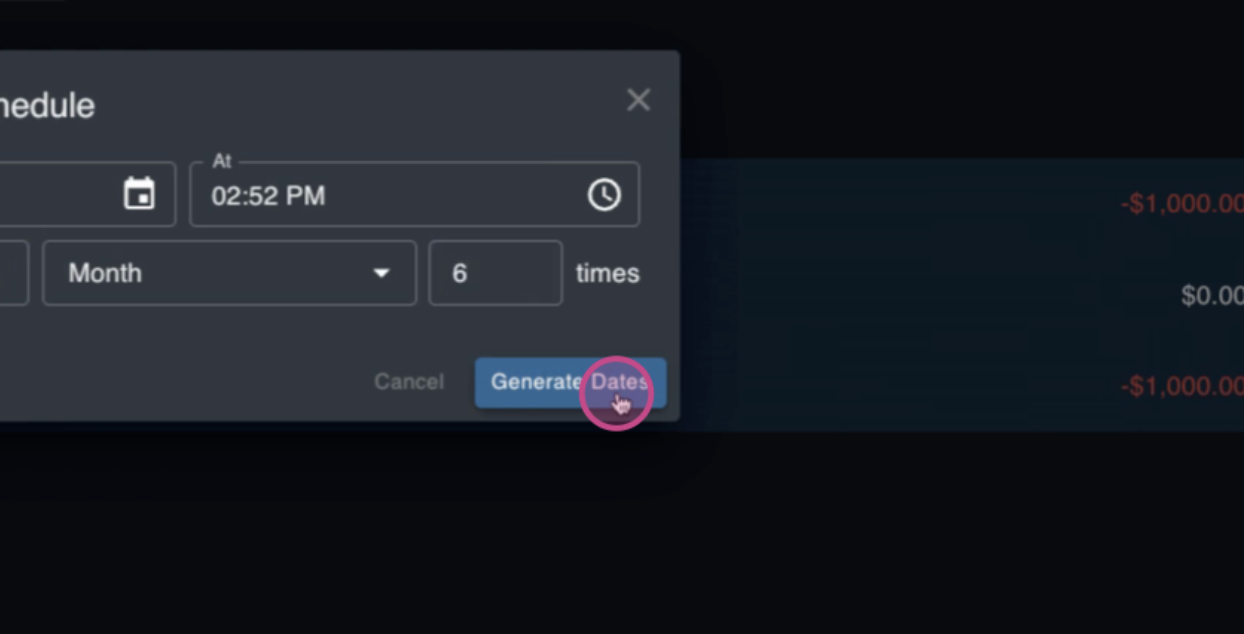
Configure a schedule for the payment plan. Designate when you want the first payment to start, how often it should repeat, and how many times it should repeat.
Step 8:
Generate the dates for the payment plan. If the amount is the same for each pay period, carry this amount over across the rest of the rows. If not, you can edit this manually.
Step 9:
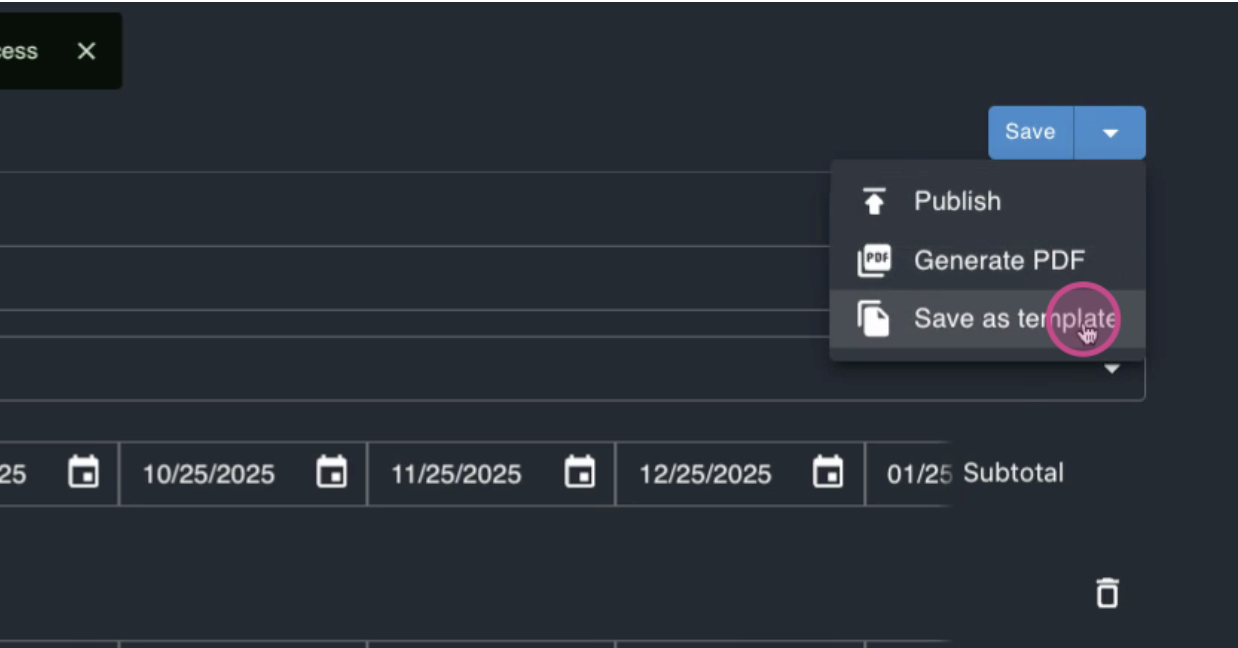
Save the payment plan first, and then save it as a template. In this example, we'll call it the computer engineering payment plan.
Step 10:
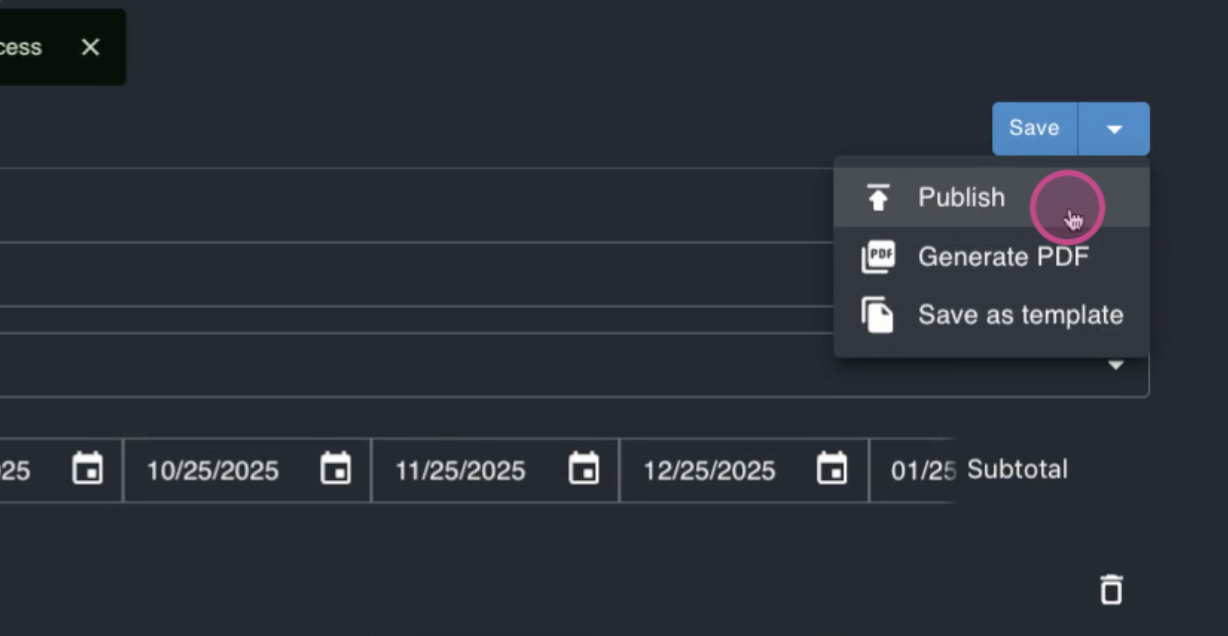
Publish the payment plan for the student.
Now, the payment plan is visible on the student's finances page, along with the upcoming charges.
The system will automatically add a debit ledger item in the amount of the payment and send a notification to the student.
Step 11:
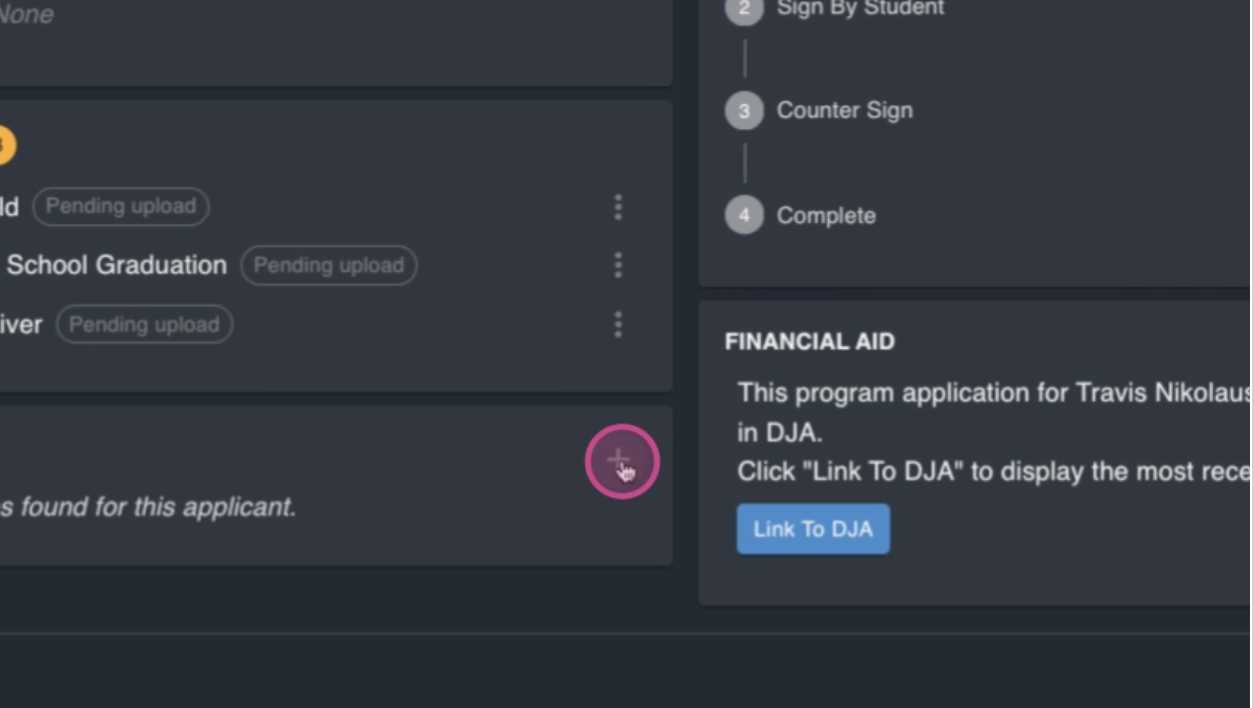
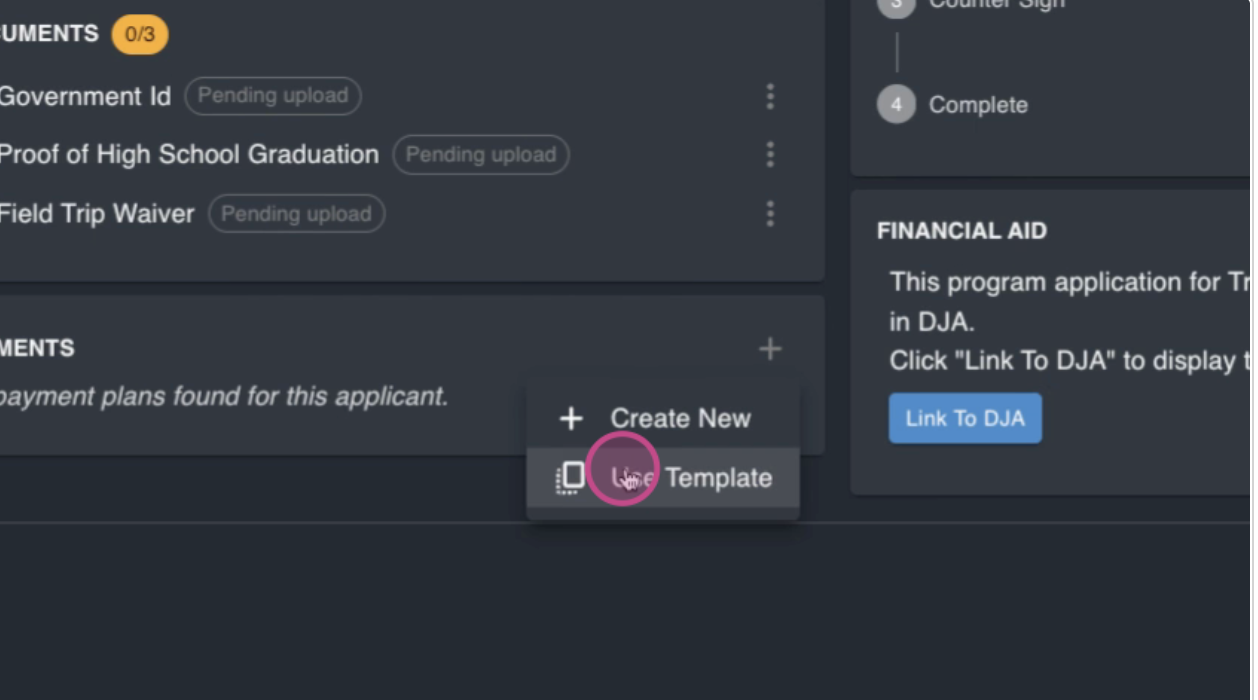
Apply the template to an applicant. In the Payments section, click the Add icon and select Use template.
Step 12:
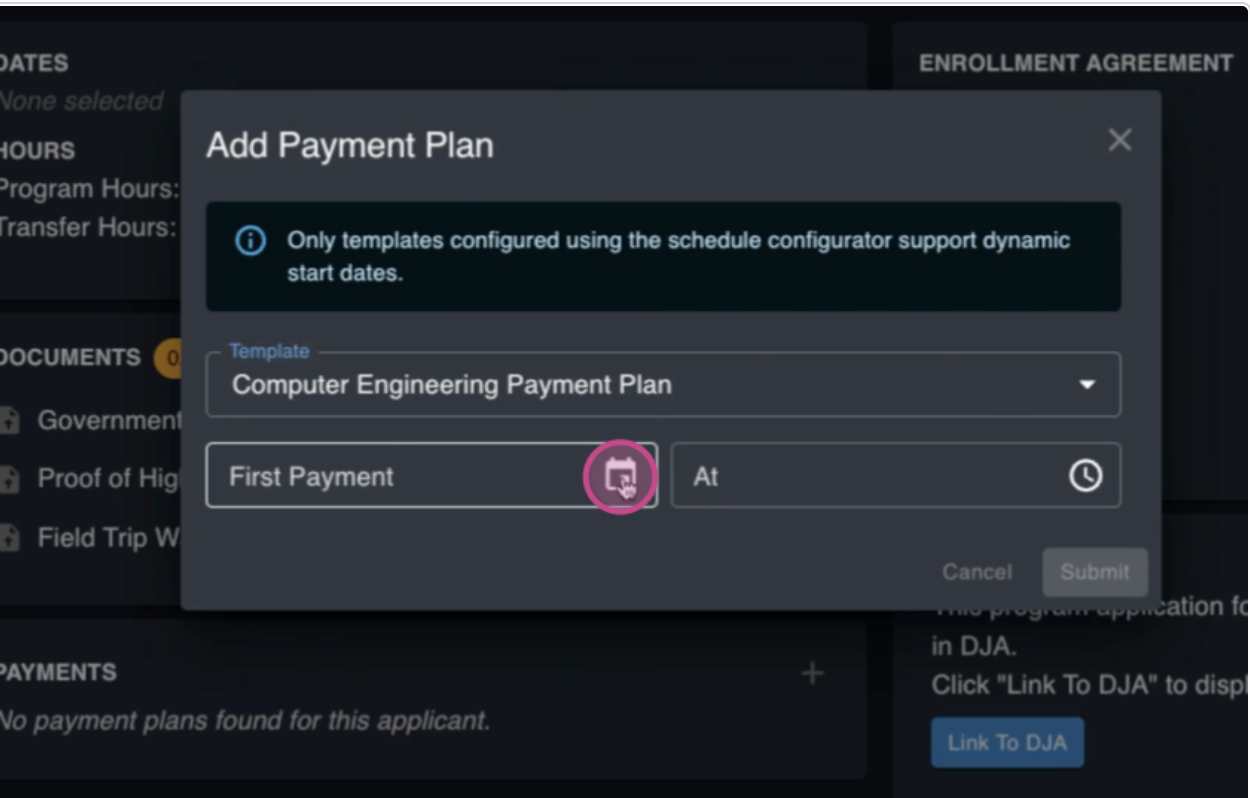
Select the template you created and enter when the first payment or when this payment plan should begin.
Step 13:
Click Submit to add the payment plan to the applicant's profile.
Creating a template with a smart schedule ensures that when adding this template to other students, all you need to do is select when the payment plan is going to start.
FAQs
1. I saved the template, but the payment plan I created is not appearing, what step am I missing?
Be sure to Publish your payment plan after saving the Payment Plan you created.
2. How does the student know about the payment plan?
The system will automatically send a notification to the student notifying them of the upcoming charges.
3. Can I save a payment plan as a template?
Yes, you can save a payment plan as a template. This allows you to apply the same payment plan to other students, only needing to select when the payment plan is going to start.