Ledger Item Transaction Dates
Last updated: December 30, 2025
Video
Step-by-Step Guide
This tutorial shows how to set and edit the transaction date for a ledger item in MyPath. Follow these steps to manage your financial records and ensure your ledger items reflect the correct transaction dates.
Step-by-Step Guide
Step 1
Open the student's finances table in MyPath.
Step 2
Select the student whose ledger items you want to review.
Step 3
Click Finances to view all ledger items for the selected student.
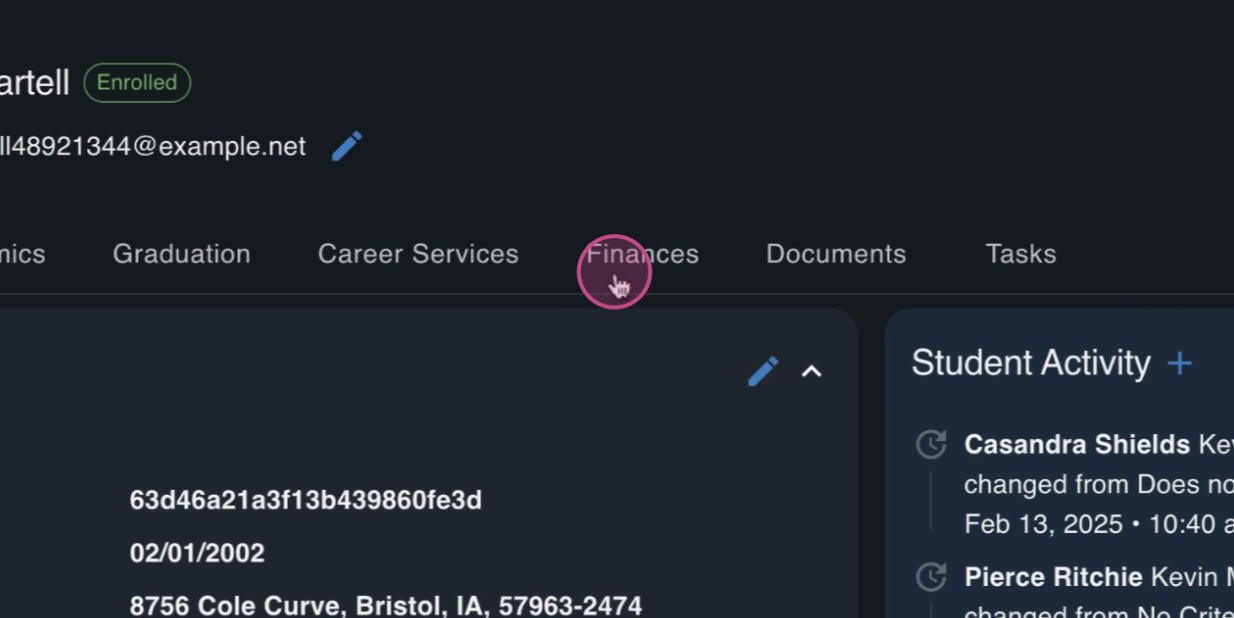
Step 4
To create a new ledger item, select the + Credit/Debit option. Here, set the transaction date to accurately track the entry.
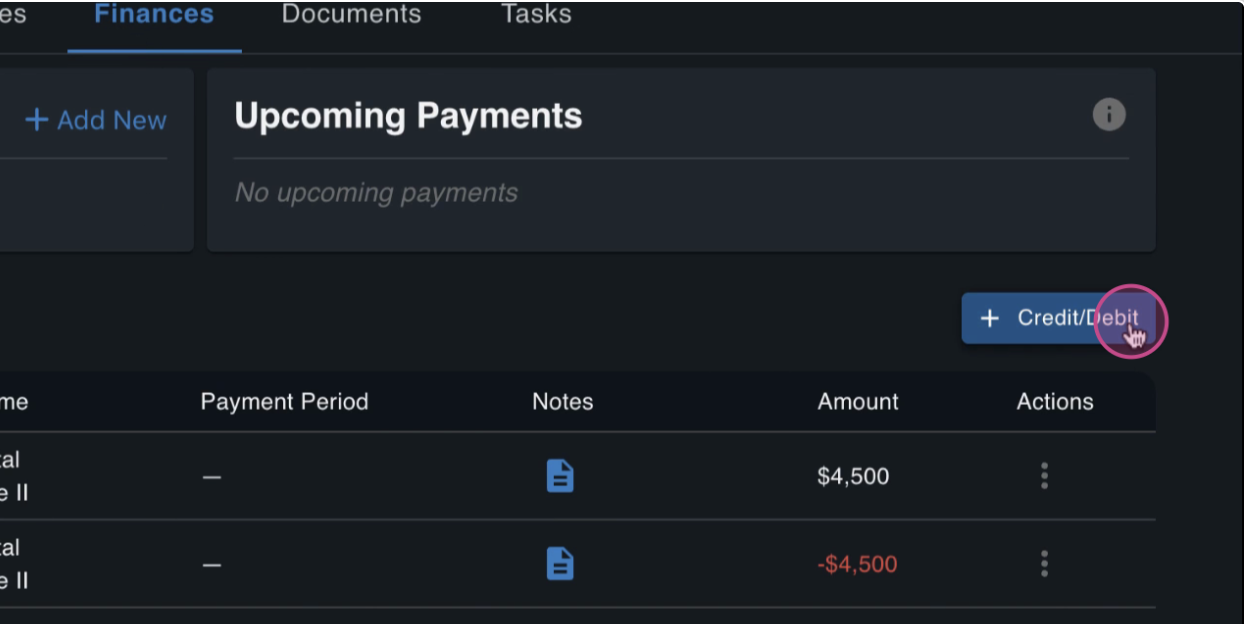
Step 5
When adding the ledger item, enter or adjust the transaction date as needed.
Step 6
To edit an existing ledger item, select the item and choose Edit.
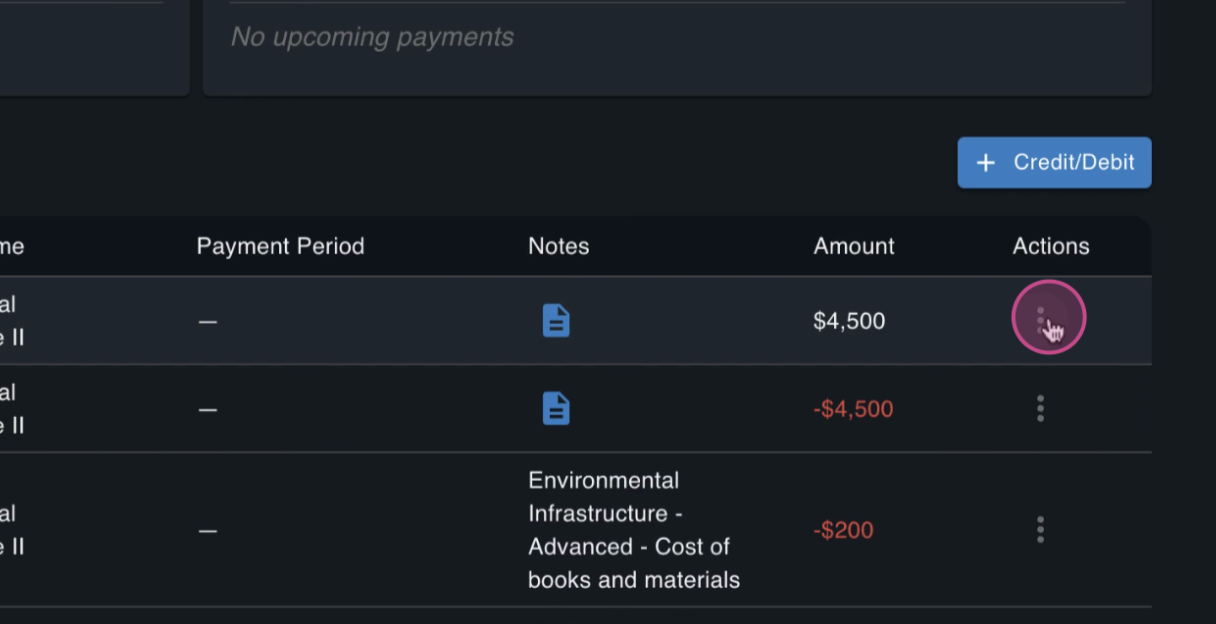
Step 7
Update the transaction date directly in the edit field.
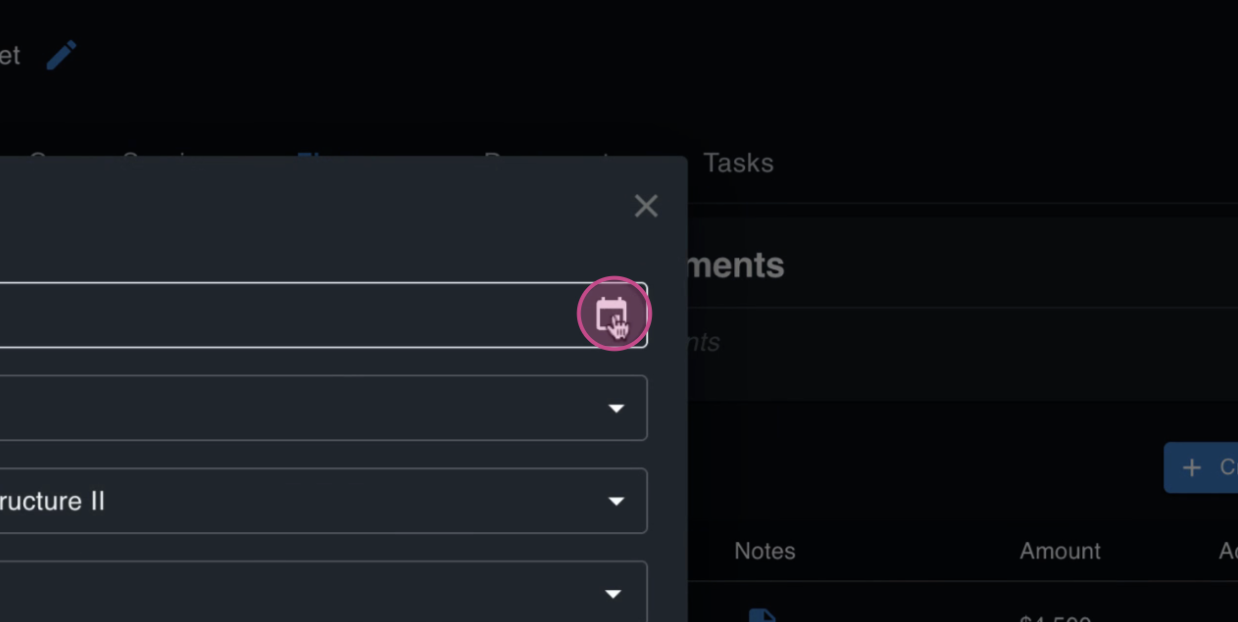
Step 8
Set the desired transaction date, to the date of the ledger item.
Step 9
Click Submit to save your changes.
You’ve successfully updated the transaction date for the ledger item. This helps keep your financial workflows accurate and up-to-date.
FAQs
Can I change the transaction date for any ledger item to any date other than today's date?
Yes, both new and existing ledger items allow you to update the transaction date to any date, and does not need to be the current date.
What if I make a mistake when editing the date?
You can always return to the ledger item and update the transaction date again as needed.