Invoice Module Overview
Last updated: December 29, 2025
Video
Step-by-Step Guide
Welcome to this tutorial on how to use the new invoicing module in MyPath. By the end of this guide, you'll know how to create, send, and pay an invoice.
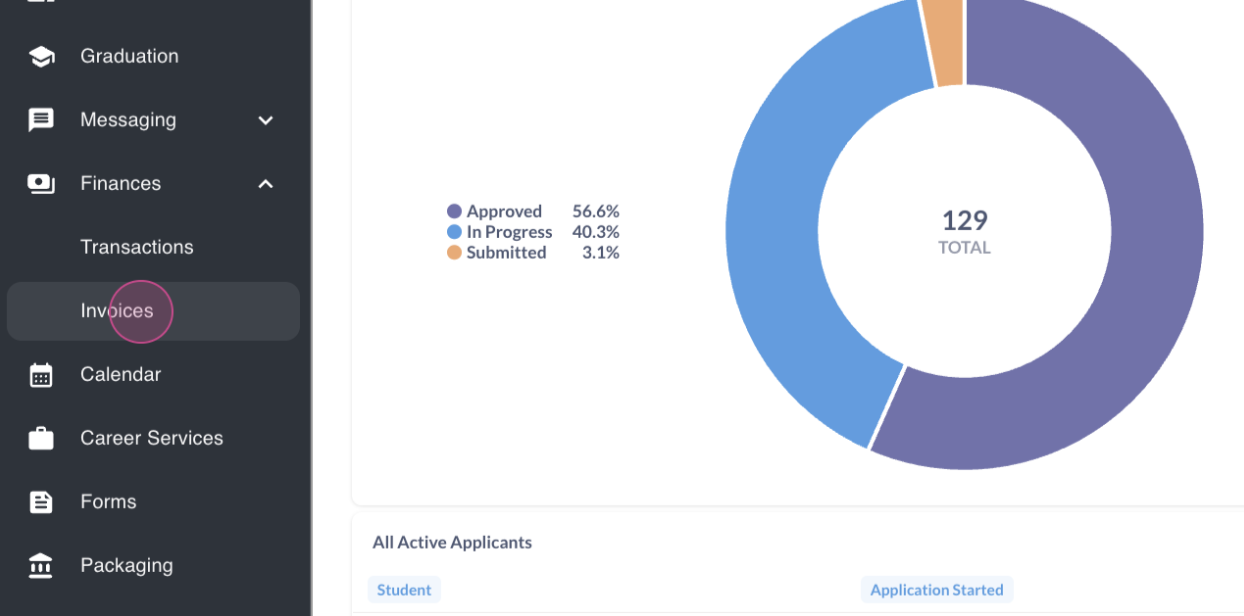
Step 1: Begin by expanding the Finances menu and clicking on the Invoices page.
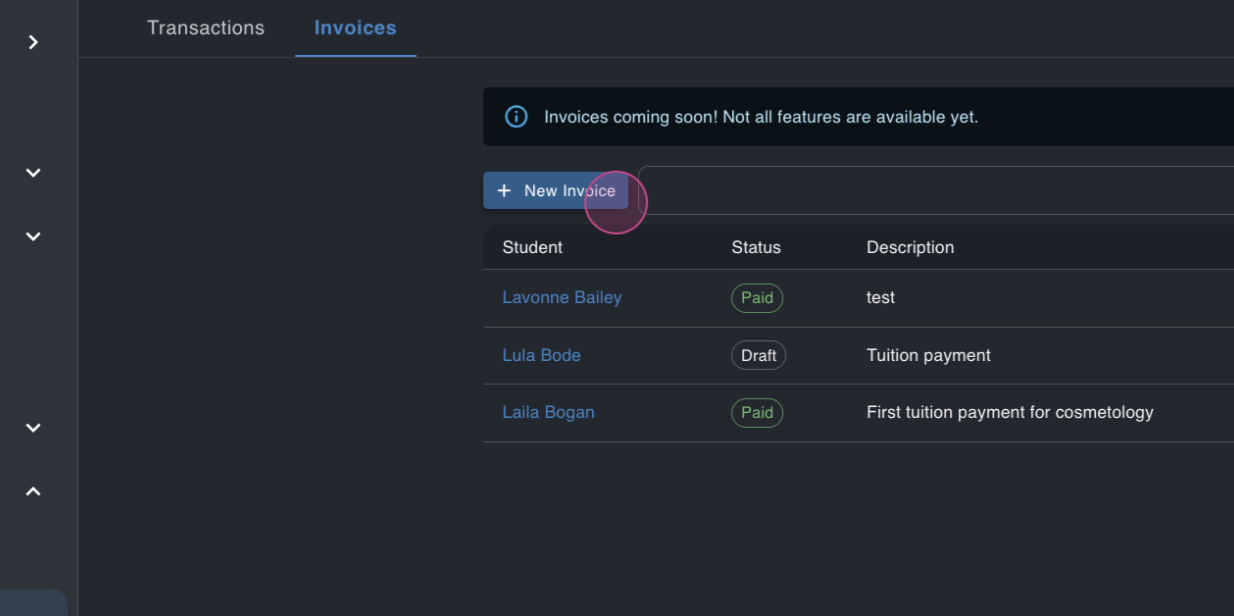
Here, you'll see a list of all invoices, including those paid, in draft status, or sent.
Step 2: Start creating a new invoice.
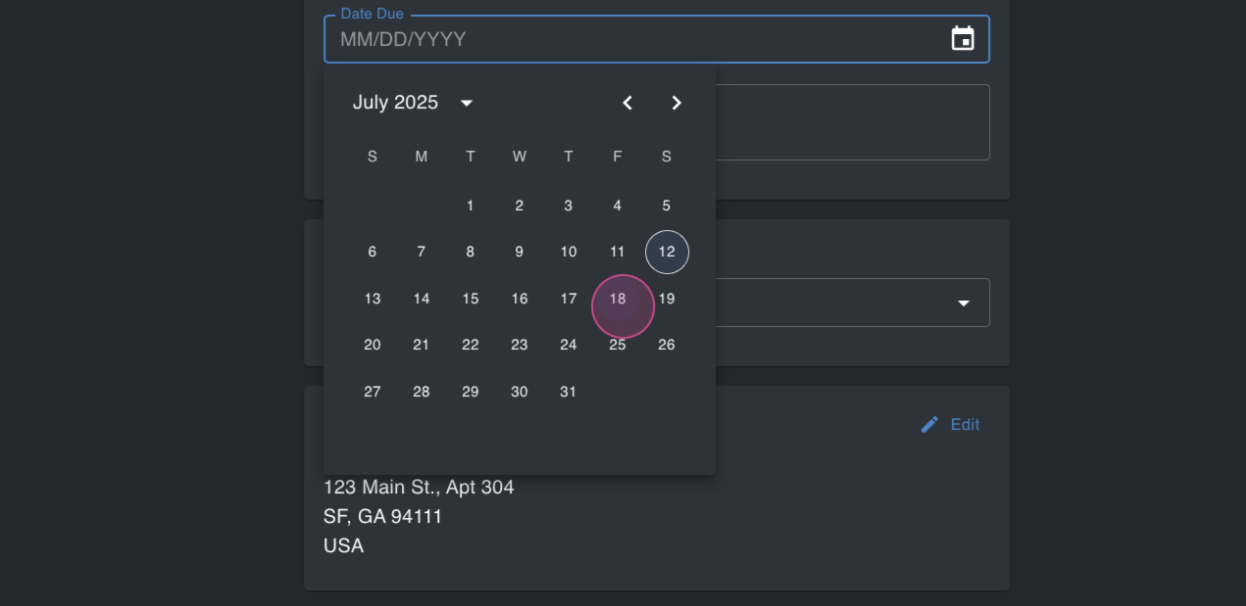
You'll first be prompted to enter a due date.
Step 3: Enter a short description for the invoice. In this case, we're entering "First tuition payment for Cosmetology."
Step 4: Search for a recipient. For this example, we're looking for Eric.
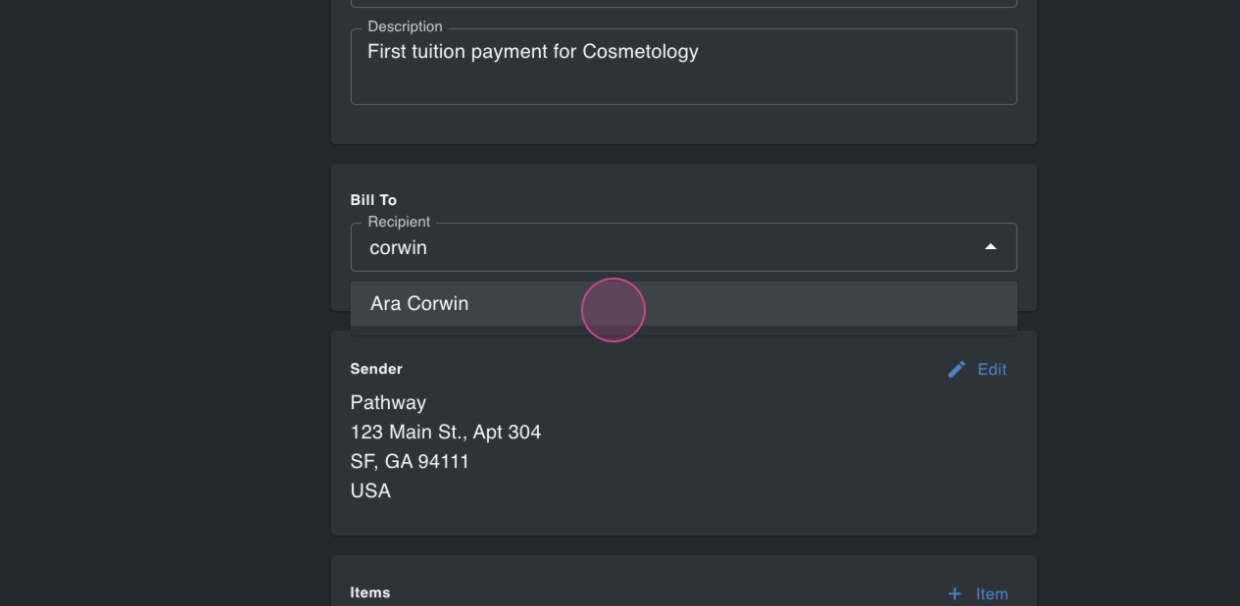
Some information will already be pre-filled based on the student's details. Fill out the remaining fields, such as the country.
Step 5: Review the sender's information. Edit it if necessary.
Step 6: Add items to the invoice.
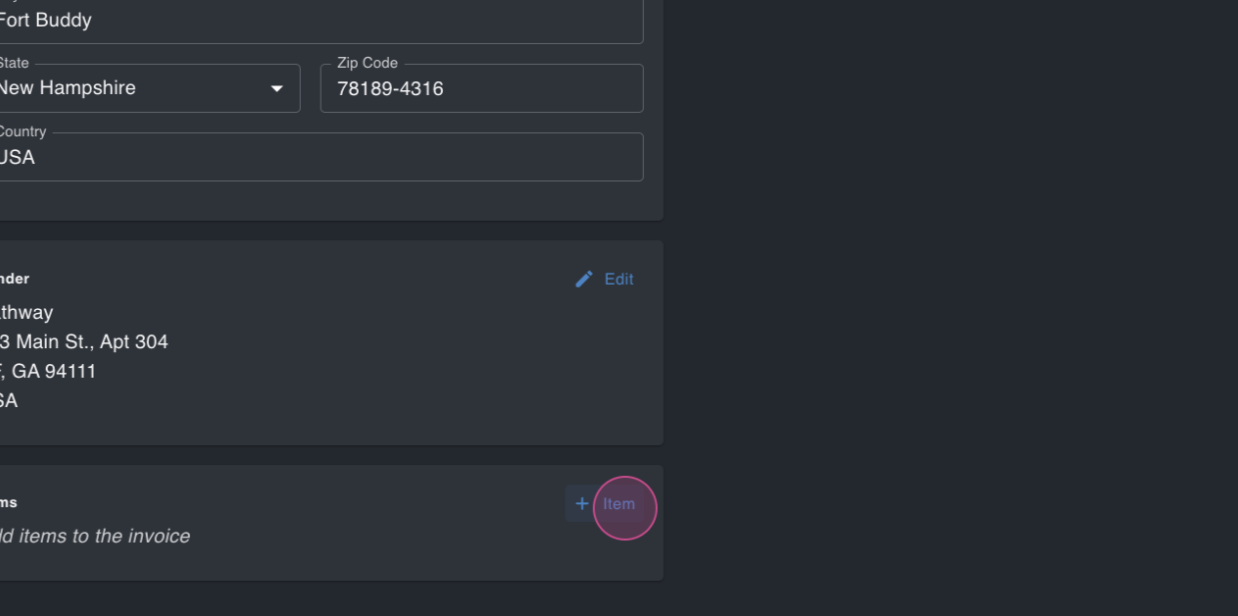
Select from your different payment categories. In this case, we're requesting $2,000 in tuition.
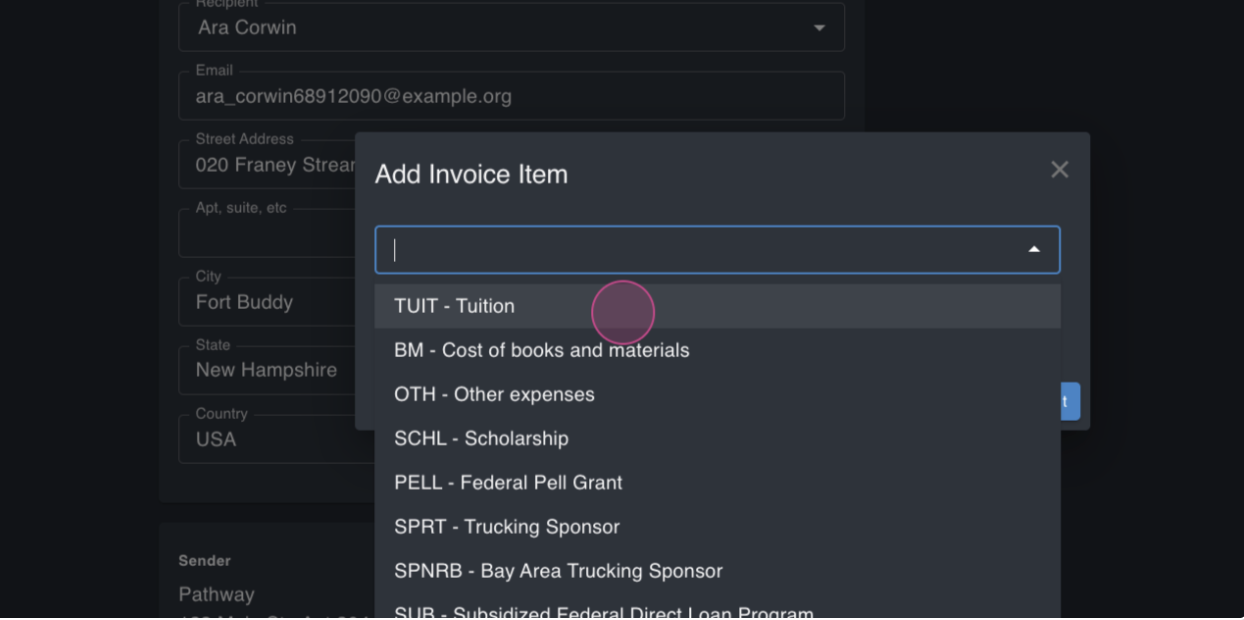
Step 7: Click Submit to finalize the invoice.
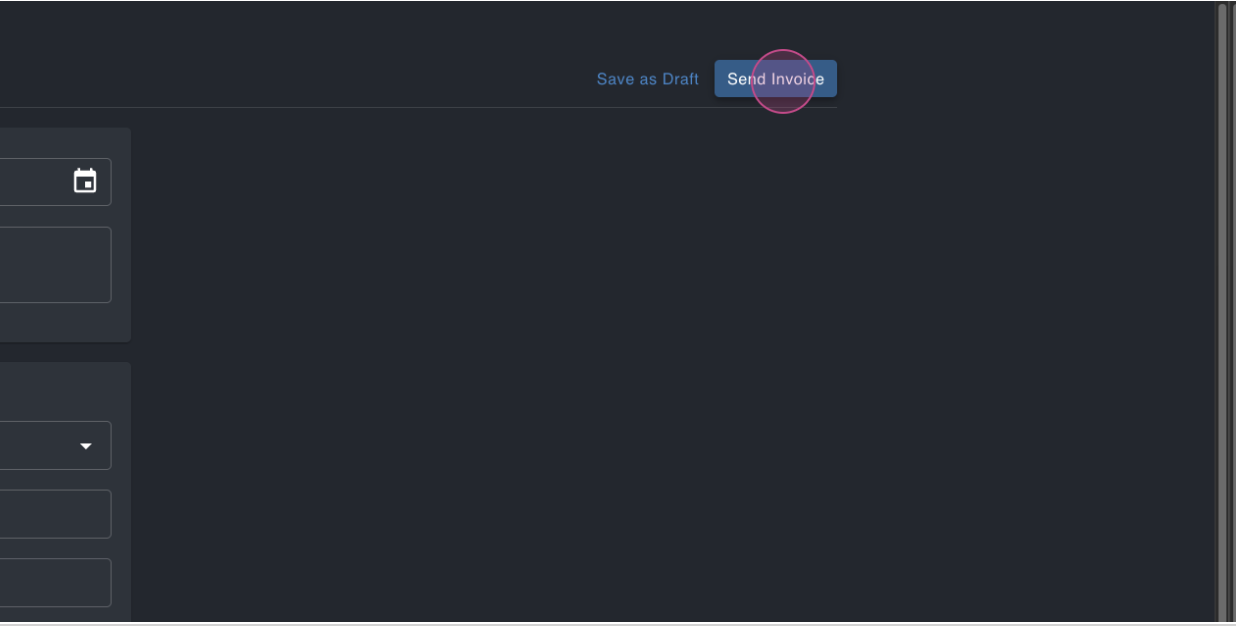
Step 8: Send the invoice to the student.
You'll see the new invoice in the sent state status on the invoices table.
Let's switch to the student's perspective.
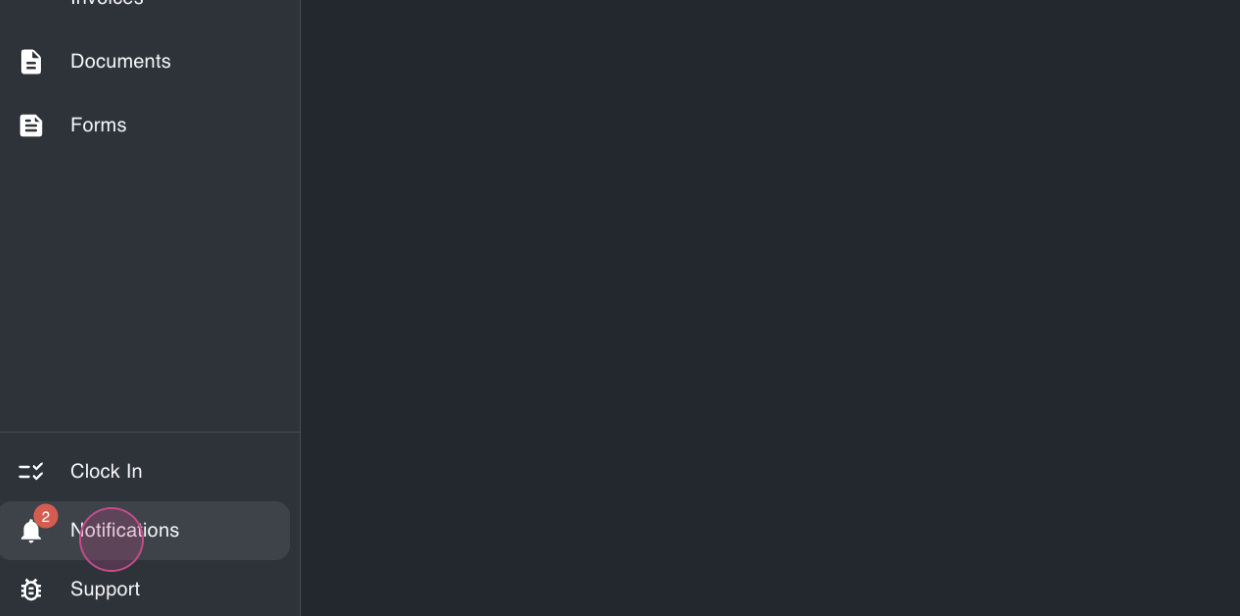
Step 9: As a student, expand the Finances menu and check the Notifications. You'll see a new notification for the invoice.
Step 10: Go to the Invoices page and view the new invoice.
You'll see the due date and the option to pay the invoice.
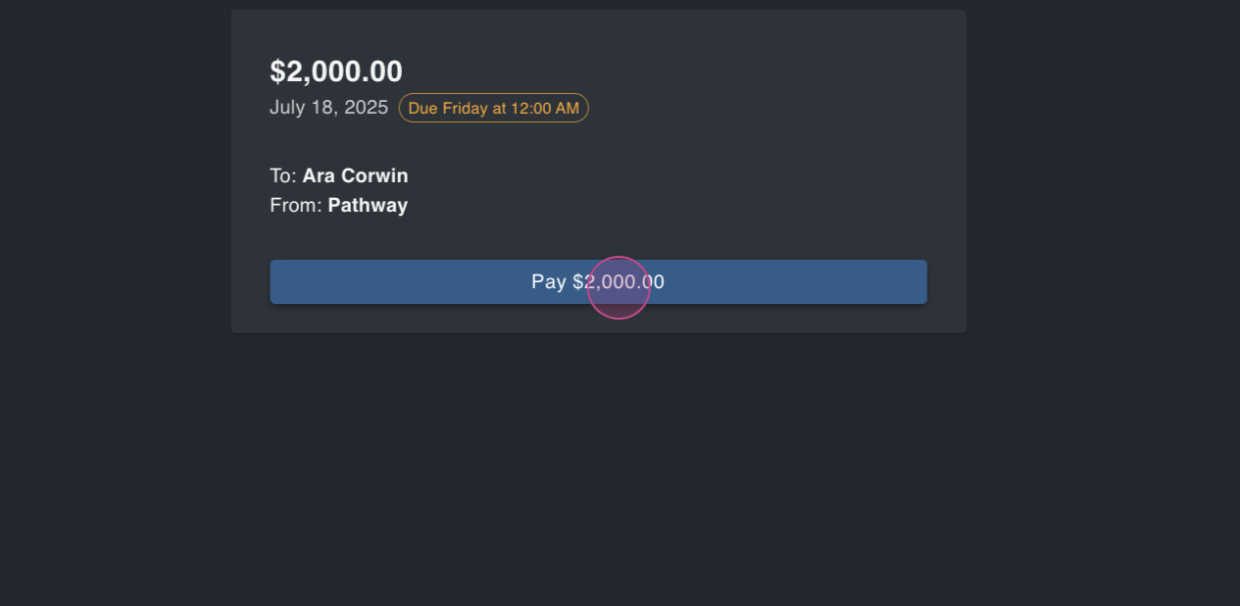
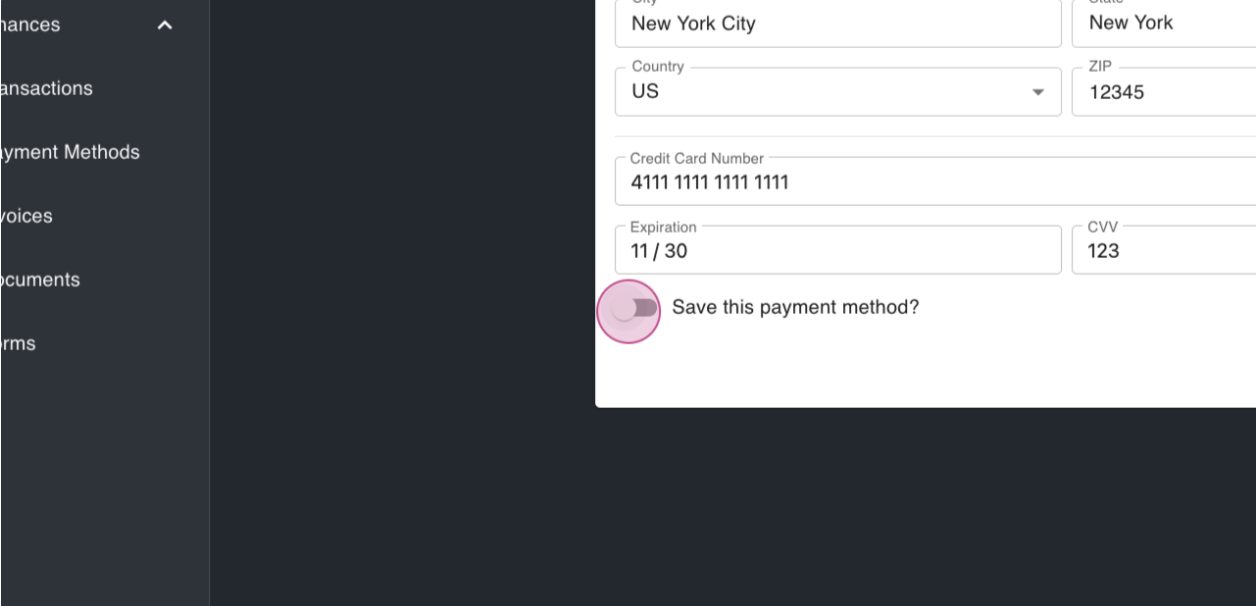
Step 11: Enter your payment information, including a billing address and credit card number.
You have the option to save this payment method for future payments. Toggle this option on.
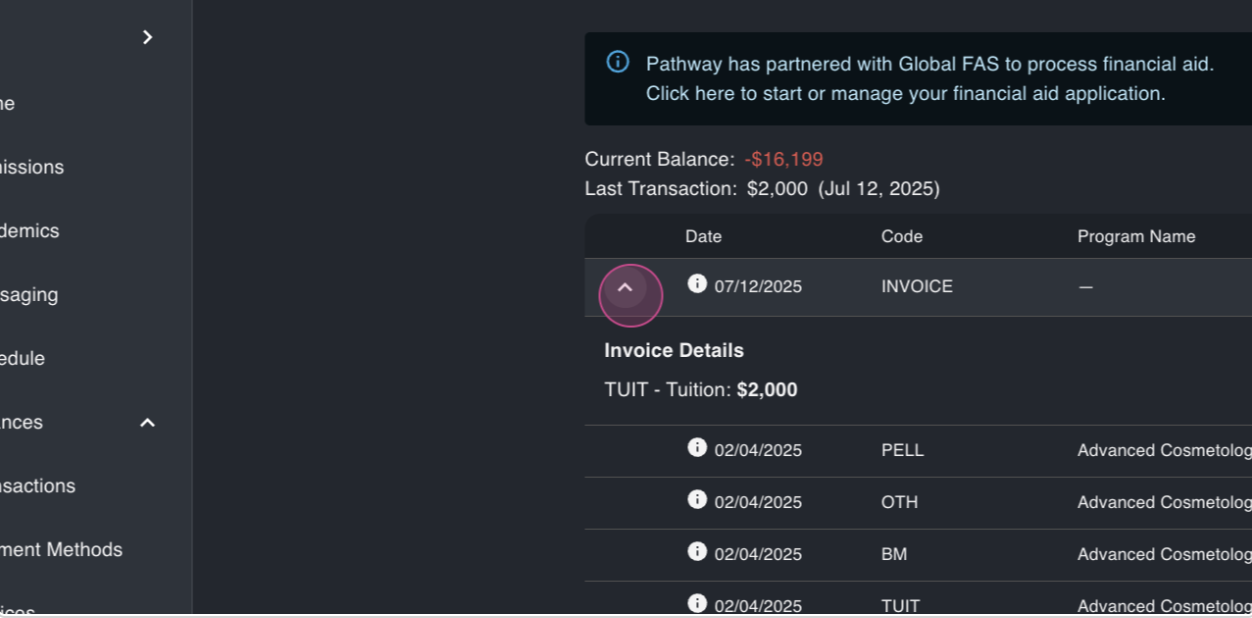
Step 12: Click Submit payment. After the payment processes, the new invoice will appear at the top of the invoices table.
Expand the invoice to see the details, including the payment made and the amount.
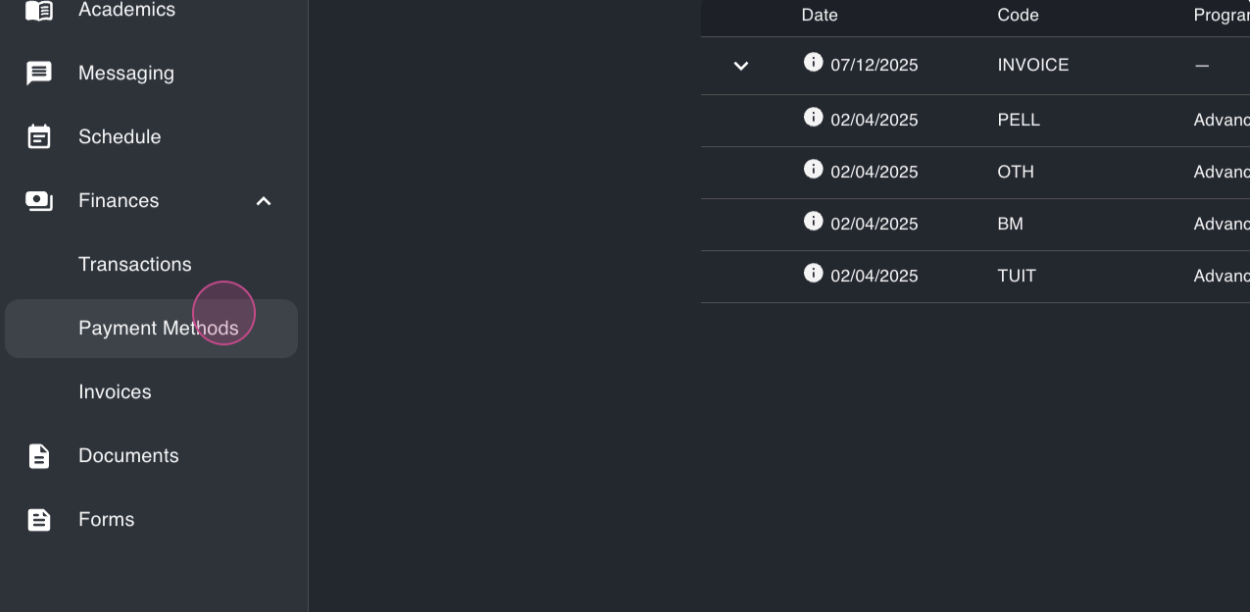
Step 13: Go to Payment methods to see the new payment method you saved.
We hope this tutorial was helpful. If you have any questions, don't hesitate to reach out.
FAQs
1. Can students save a payment method to have on file?
Yes, students have the option to save this payment method for future payments. Toggle this option on.