Approving Submitted Admissions Documents
Last updated: December 26, 2025
Video
Step-by-Step Guide
Welcome to this tutorial on MyPath. By the end of this guide, you'll know how to approve admissions documents uploaded by students in their portal.
Step 1: Start by expanding the Admissions section of MyPath.
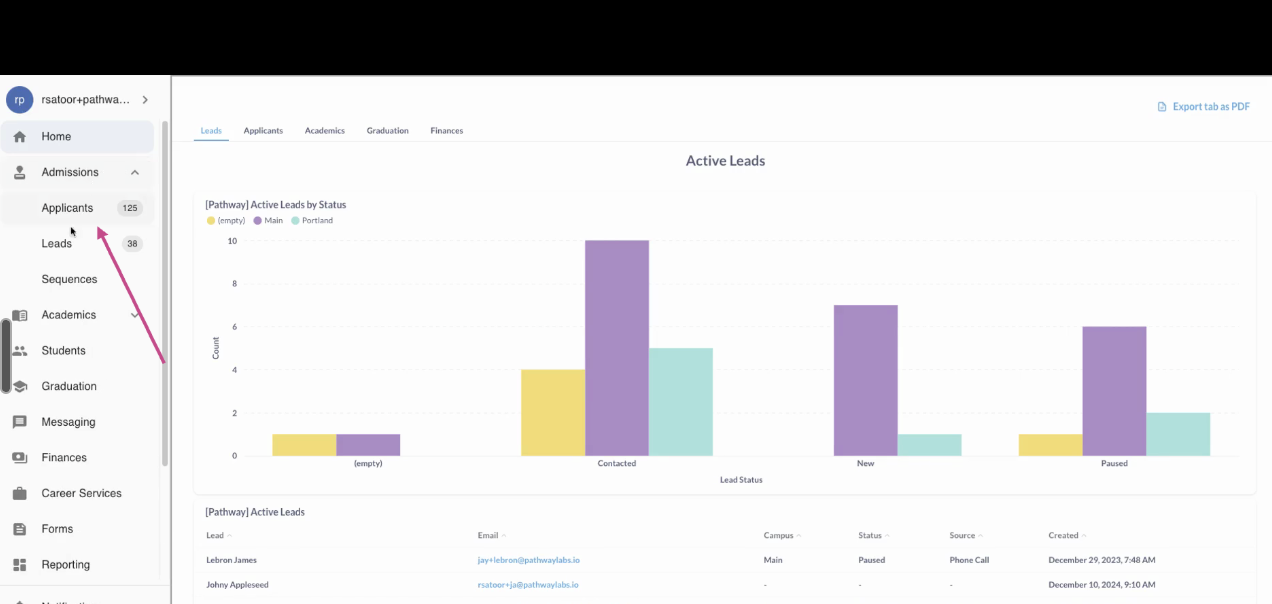
Step 2: Click on the Applicants page.
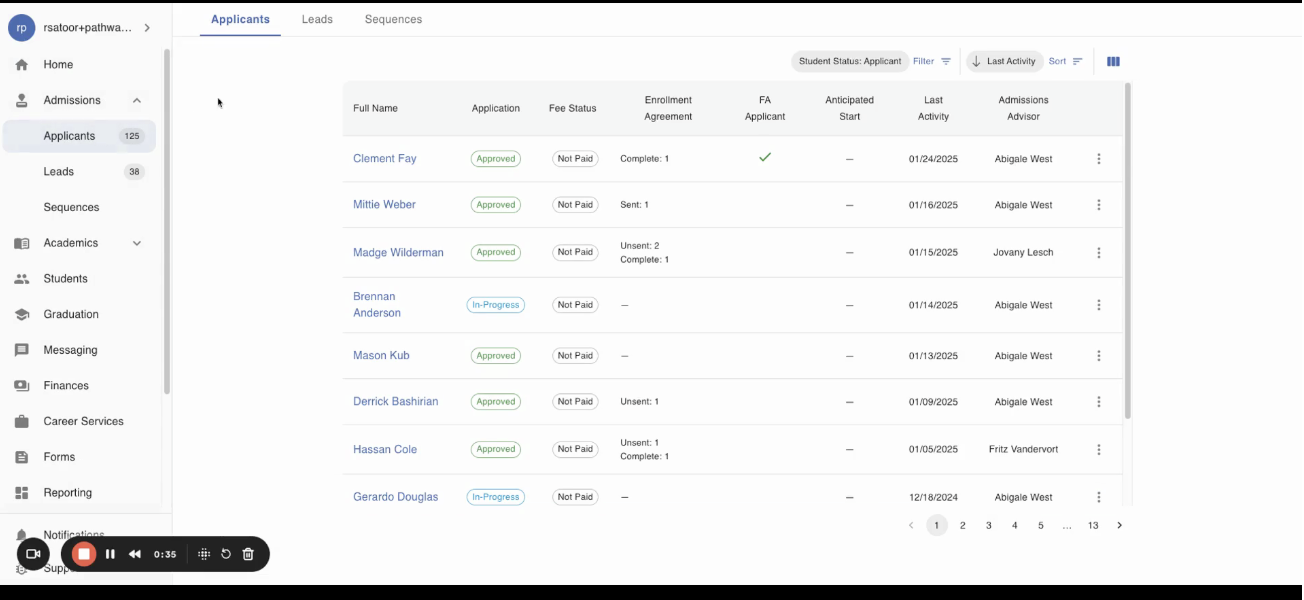
Step 3: Select the Applicant you would like to review and approve Admissions documents for.
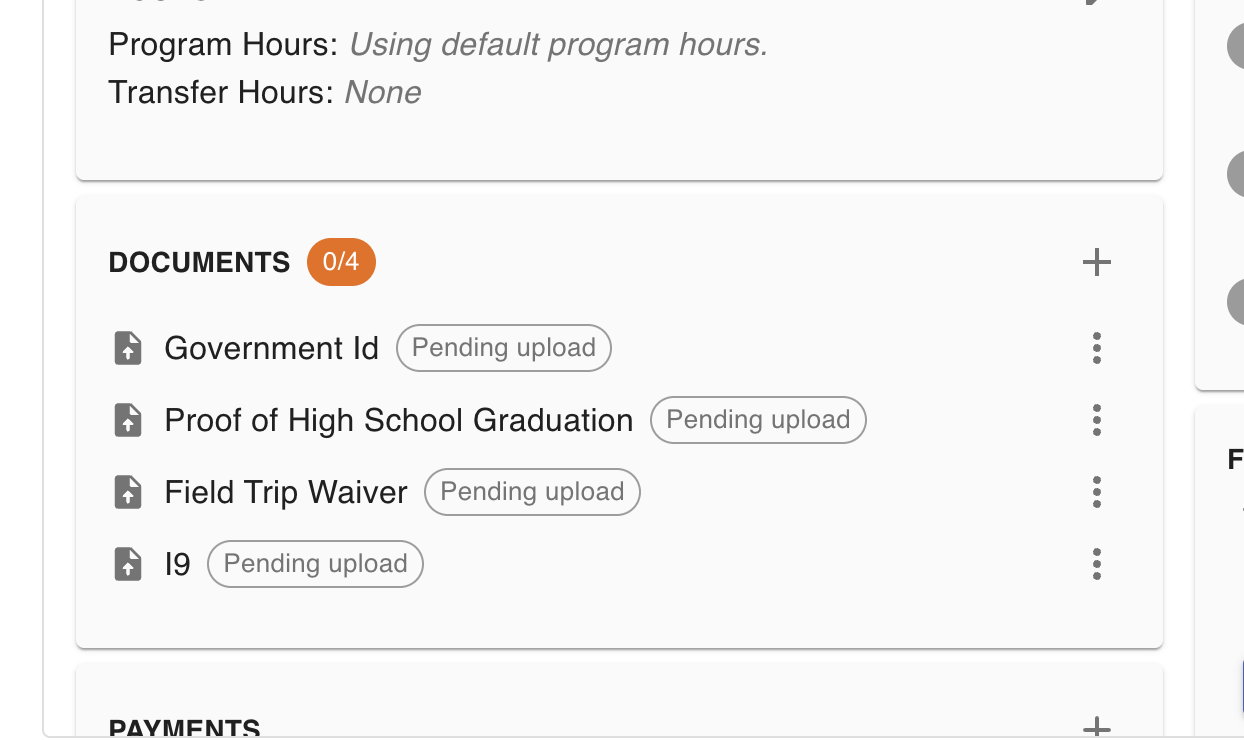
Step 4: Locate the Documents card on the Applicant page
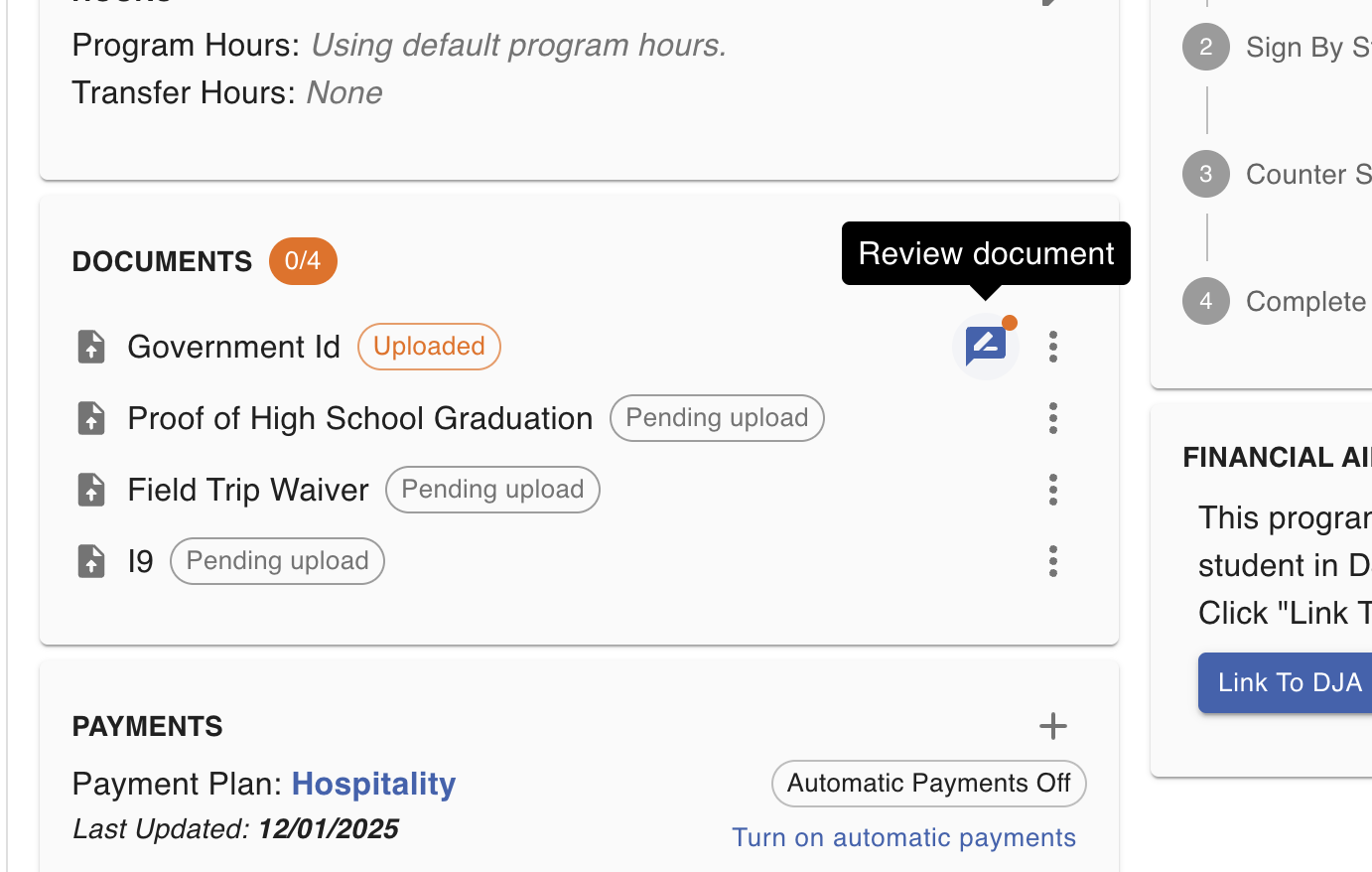
Step 5: Click on the "Review Document" icon to review the submitted documents
Step 6: If the uploaded file meets the Document requirements, select 'Approve' to approve the admissions document submission.
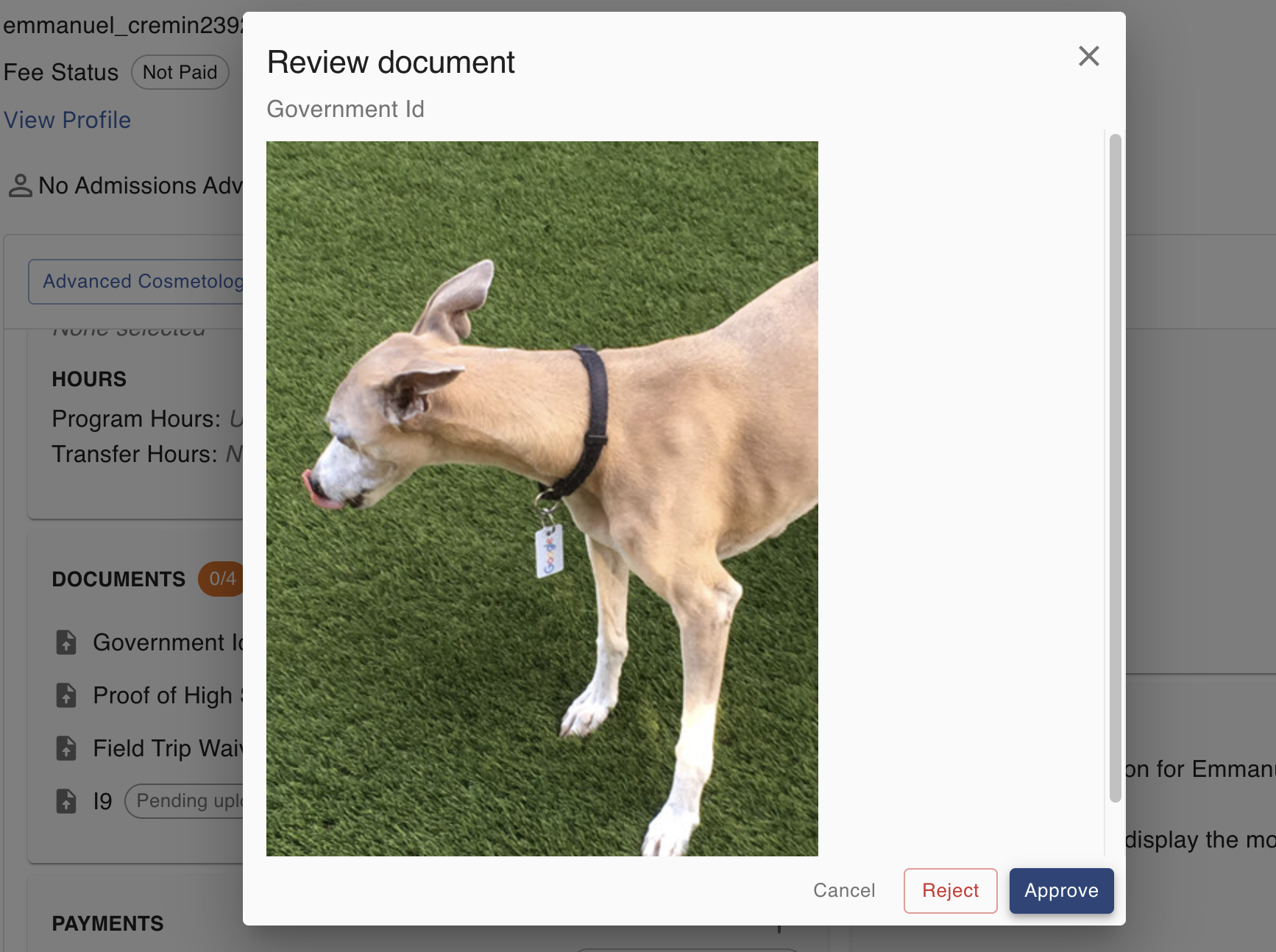
Step 7: Click on Approve again. The status of the documents will change to show that they've been approved.
If you need assistance with approving or requesting admissions documents, don't hesitate to contact your customer success representative.
FAQs
What if a document doesn't meet the requirements?
If a document doesn't meet the requirements, you should not approve it. Instead, reject the document and include a reason so the student has sufficient information to upload a corrected version.
Can I request additional documents after the initial ones have been approved?
Yes, you can request additional documents at any time during the admissions process.